What is a BLUE Task?
A task is a single unit of work that a user must complete, such as uploading a file or reviewing a piece of artwork. A project contains tasks, which must be performed in a predefined sequence in order to produce a desired outcome, such as an approved piece of artwork.
Who can work on tasks?
By default, only the task owner, delegated task owner, or a workflow admin can edit task attribute values and complete the task. The task also needs to be in progress. This is controlled by a BLUE site-wide setting. Here is a summary of the behavior, depending on how your system is configured.
Workflow Schedule Owners May Complete Task |
Behavior |
False (default) |
Only the task owner, delegated task owner, or workflow admin can edit task attribute values and complete the task. The task must be in progress. |
True |
The project owner, sub-process owner, task owner, delegated task owner, or workflow admin can edit task attribute values and complete the task. The task must be in progress. |
Viewing a task
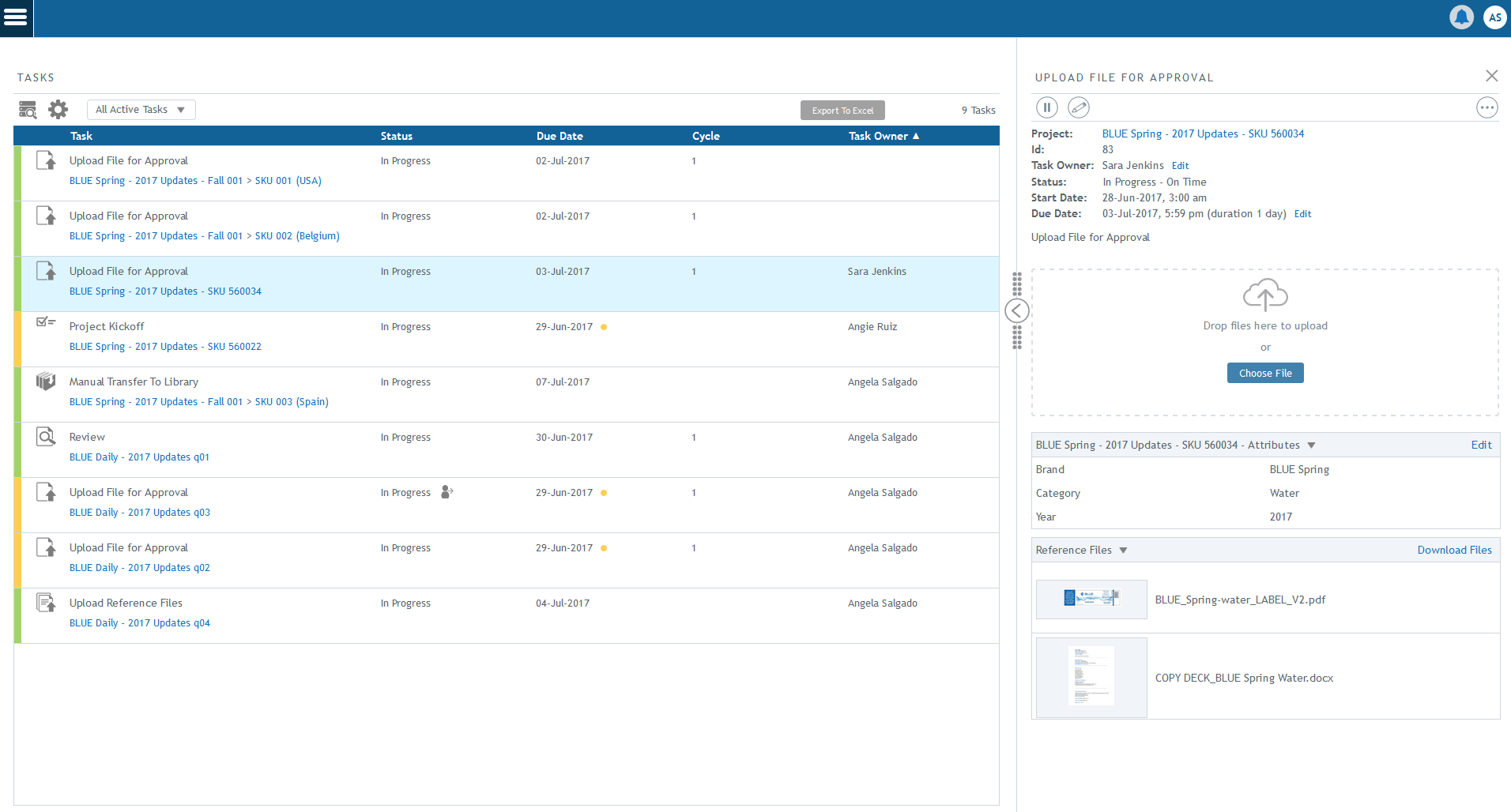
If your job is to perform or manage tasks, you will be automatically directed to your task list. To view the details for the task, click on the task row to open the task detail panel on the right hand side.
Exploring the task details
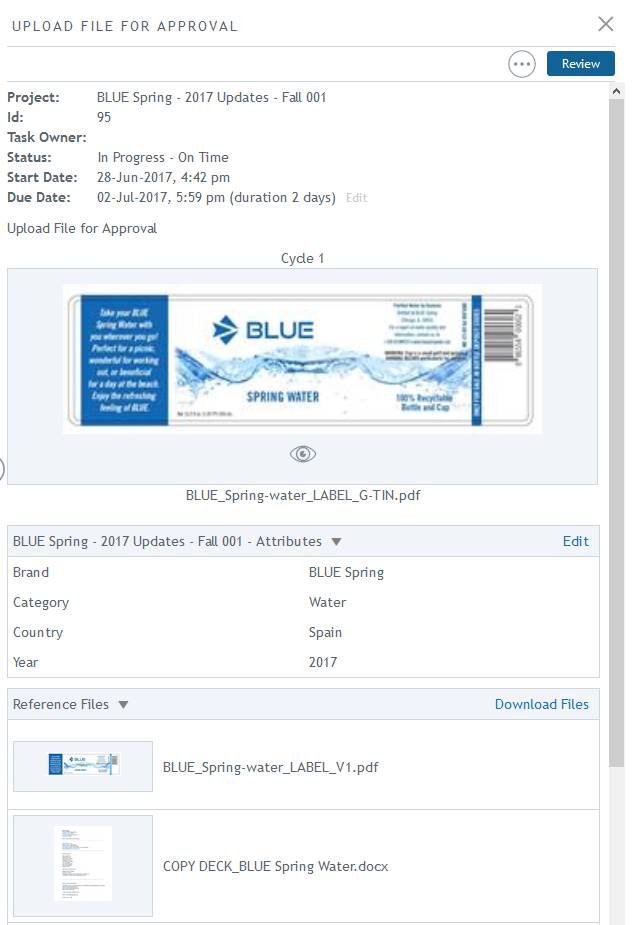
Once you have clicked on a task row to see its details, you’ll see everything you need to complete your task. The right panel will display the details of the task, including the project name, the task status, when it was created, and when it is due. You will also see metadata assigned to the task and any reference files that are needed for you to work on your task. You’ll be able to upload files or launch the online proofing tool to preview, review, approve, or reject files, as well as complete the tasks all in one place. Depending on the type of task that it is, you will either see actions to “Review” or “Complete” the task.
Task actions
Claiming tasks
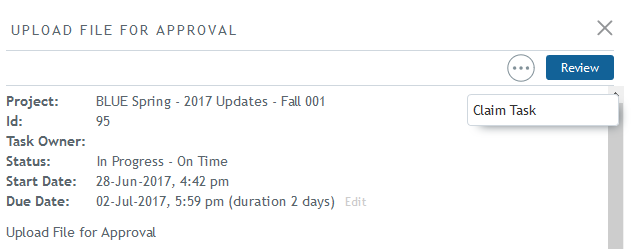
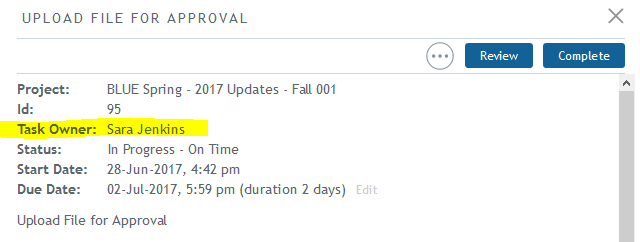
As a task owner, you can Claim a task that is either unassigned, or assigned to another member of your group. By claiming a task, you become the task owner responsible for completing it. To claim an eligible task, click on the Actions menu. You will see the option to “Claim Task.”
Delegating tasks
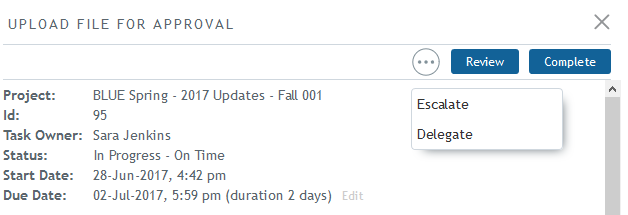
You can also choose to Delegate a task assigned to you. By delegating your task, you are still the responsible task owner, but the person you have delegated the task to, can complete it on your behalf. To delegate a task, click on “Delegate” in the Actions menu of your task. Select a user from the same group responsible for completing the task.
Note: Delegating to out-of-office users is not allowed. Out-of-office users are shown in user drop downs with a red dot next to their name.
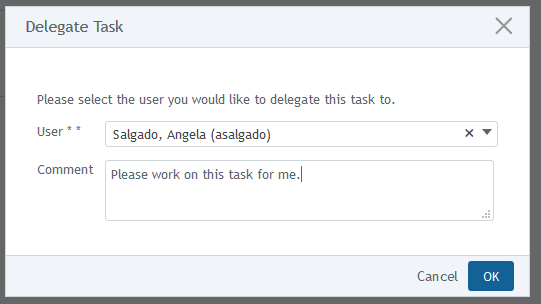
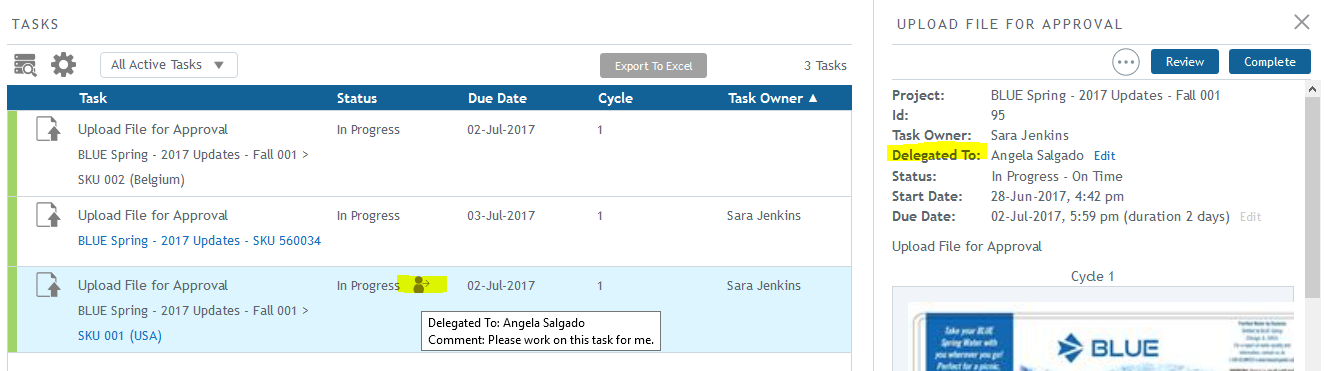
The delegated person will receive an email notification and their name will appear in the task details. An icon will also appear on the task to show that it was delegated.
Escalating tasks
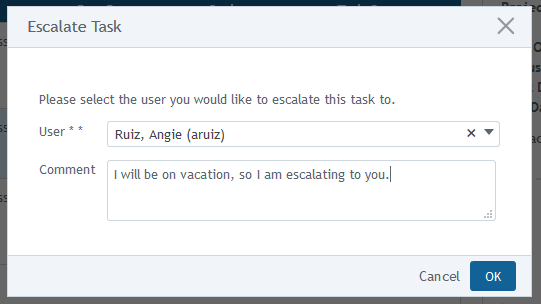
If you are unable to work on a task, you can Escalate it to either the sub-process owner or the project owner. Escalating tasks may be done one at a time using the Escalate action, or automatically by turning on your out-of-office status.
Escalating a single task
To escalate a task, click “Escalate” in the Actions menu of your task.
Note: Escalating to out-of-office users is not allowed. Out-of-office users are shown in user drop downs with a red dot next to their name.
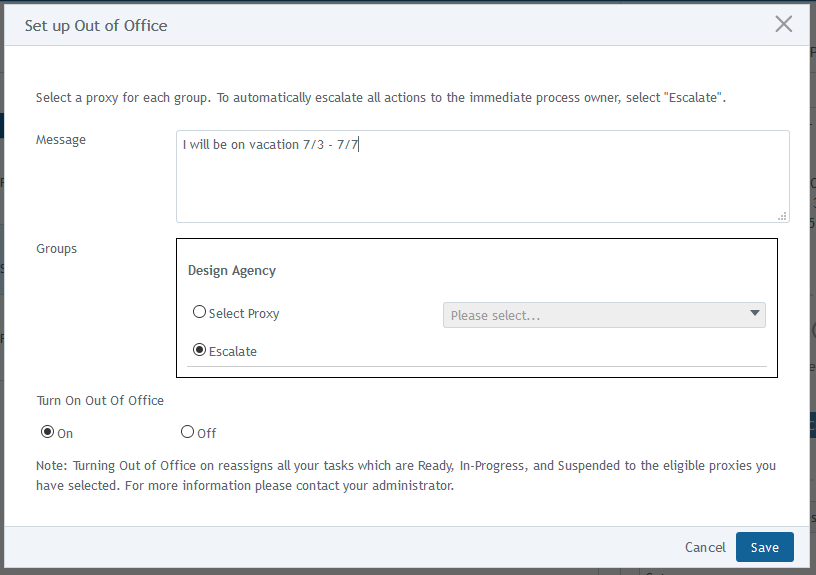
Escalating tasks when you are out of office
If you have your ‘Out of Office’ options set to escalate, tasks assigned to you will be automatically escalated to the sub-process or project owner.
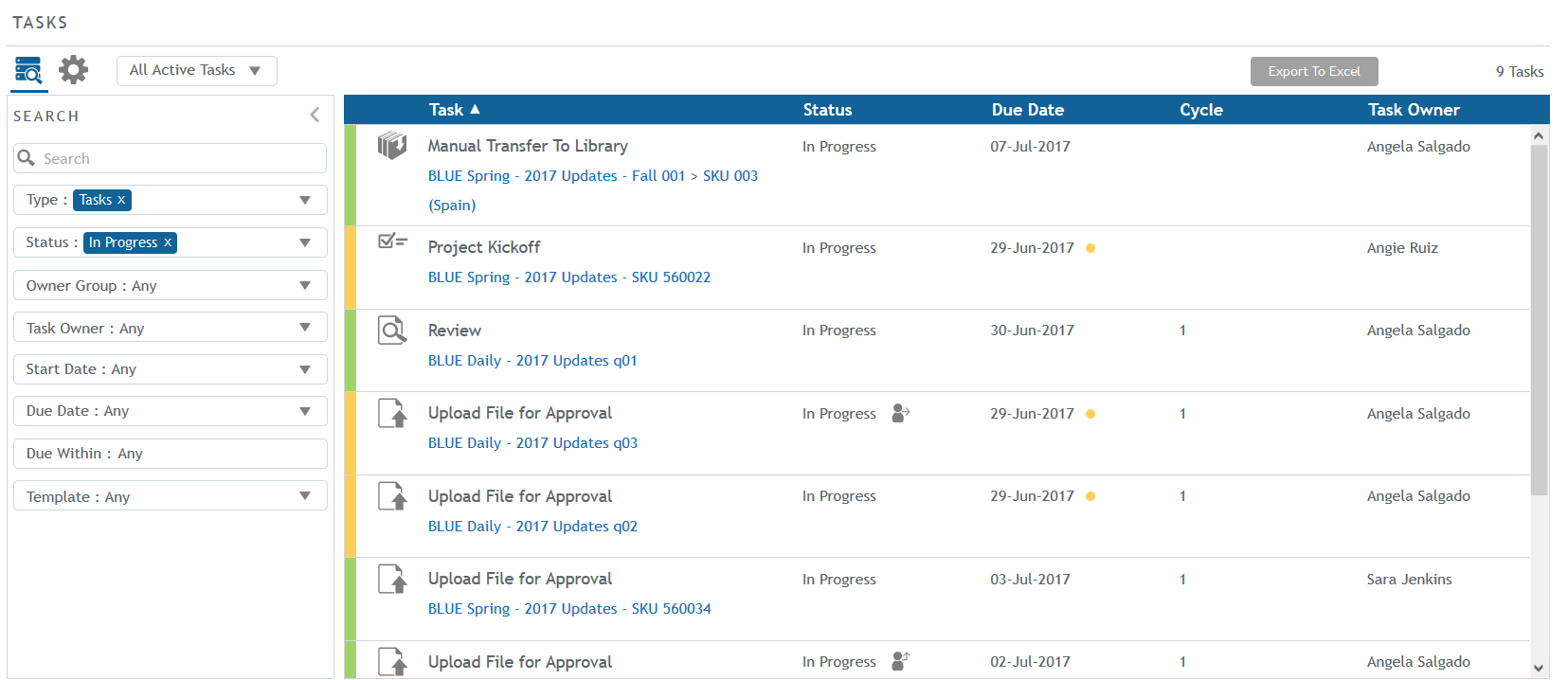
Task list options
Using search filters
Click on the Search icon to view and configure filtering options. Results are based on the criteria chosen. See Project and Task Search for more information.
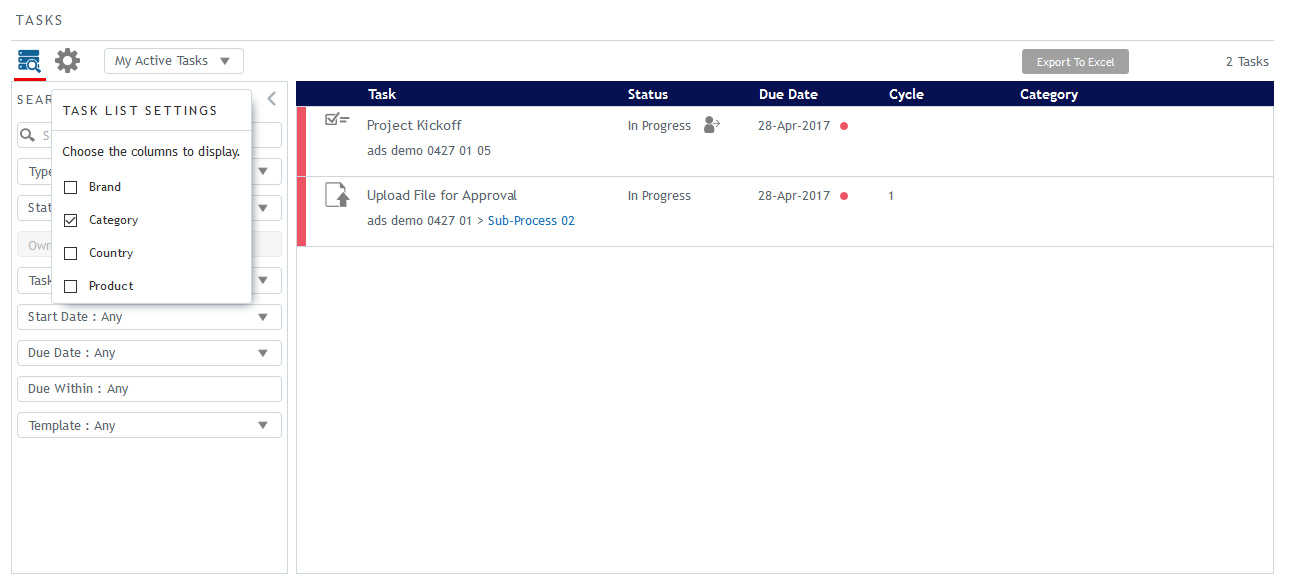
Selecting which columns to display
To add more columns to display on your task list, open the task list settings and select one of the available options shown. Selected columns will display in your task view.
Sorting tasks
Click on a column heading once to sort the list. Click a second time to reverse the sort order. For example, click on the Due Date column heading to sort the task list by due date. 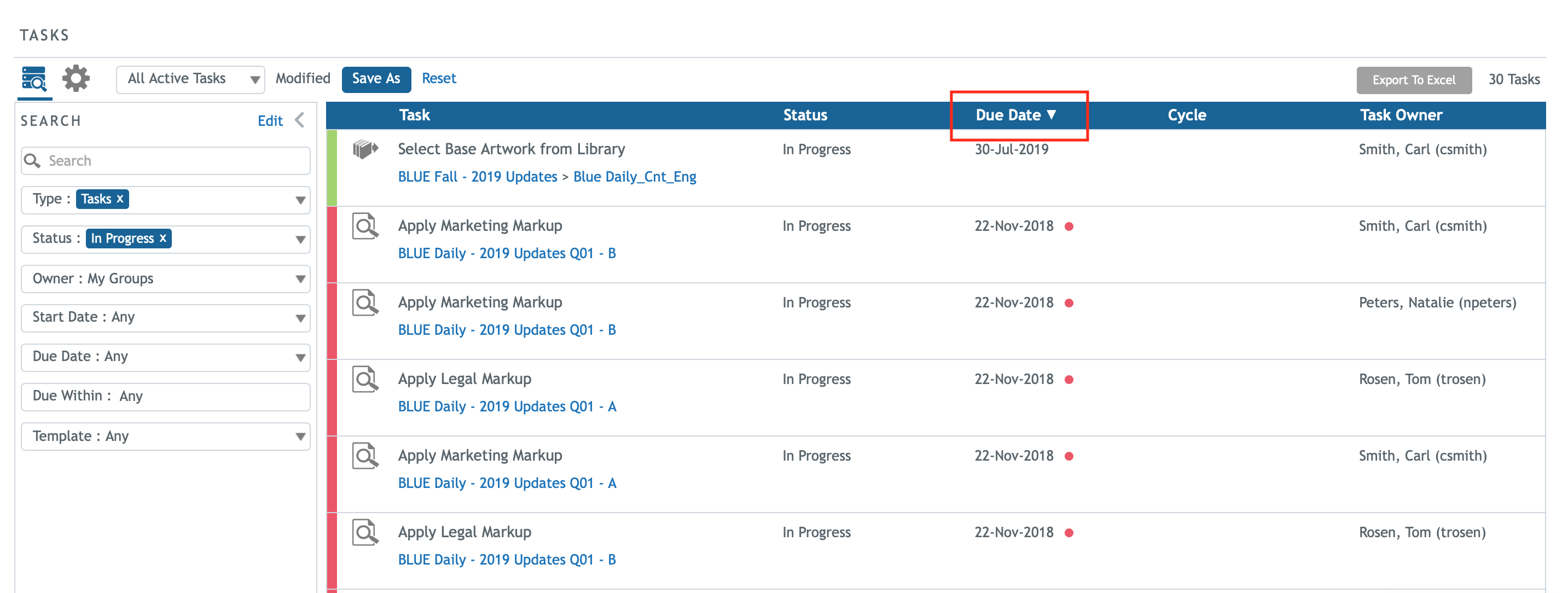
Understanding task statuses
Here is a summary of the different task statuses used in BLUE.
Status |
Description |
In Progress |
This item is active and ready to be completed. Prerequisite tasks have been completed. These In Progress tasks will include those that are at risk of being late and those that are late. |
Pending |
This item has not started yet. |
Completed |
This item has been completed on time. |
Approved |
This item has been approved and it was on time. |
Rejected |
This item has been rejected. |
Bypassed |
This item is scheduled to be bypassed, or has been bypassed (skipped) in the project. |
Canceled |
This item has been canceled and cannot be restarted. |
Suspended |
This item has been suspended and may be restarted. |
Understanding task types and icons
A project is usually comprised of different tasks types. For example, within a process, the first task could be to upload a file, the next step could be to review the file and the last step could be to approve the file. Each task type has an icon associated with it. These are the BLUE task types:
Task
|
Description |
|
|
|
Standard Tasks |
These are tasks you accomplish and complete outside of BLUE. Examples would be calling a supplier, calling a meeting, or printing a file. You would track and mark these tasks as complete in BLUE. The standard task can also validate data entry tasks on completion. |
|
|
Upload Reference Files Tasks |
This task requires you to upload a file to BLUE. This is usually a reference file or supporting document, such as an image, document, video, or 3D Collada file that does not need to be routed for review and approval. This file can be accessed by any user who is involved with the project. You may also attach existing files from the Asset Library to a project as a reference. These files are displayed in the right panel when reviewing files. |
|
|
Upload File for Approval Tasks |
This task requires you to upload a file for review and approval. After uploading a file, the task owner marks the task as complete in BLUE. |
|
|
Review Tasks
|
This task displays the file that was added for review, which may be the base artwork or the approval candidate. Reviewers will open the file in online proofing and use the annotation tools to add comments.When reviewing an approval candidate and there is a previous cycle, the reviewer will be able to compare cycles in online proofing’s compare view. When the task is complete, the file will be available for the approval task(s). |
|
|
Approval Tasks |
This task displays files for approval. Approvers can add comments and add their approval decision (approved or rejected) in online proofing, which automatically marks the task as complete. |
|
|
Complete Form Tasks
|
These tasks are used to request specific information from the task owner. Usually reserved for gathering data such as brand information, ingredients, nutritional information, disclaimers, and/or warnings. Forms may also be saved as reference files and approval candidates within a workflow. See Forms for more information. |
|
|
Manual Transfer to
|
These are manual tasks assigned to a user, who transfers the approved asset to the BLUE Library following the approval process. See Transfer to Library Tasks for more information. |
|
|
Auto Transfer to
|
These are automated system tasks, which will transfer the approved asset to the BLUE Library following the approval process. See Transfer to Library Tasks for more information. |
|
|
Auto Transfer to
|
These are automated system tasks, which transfer the approved asset to the MediaBeacon Library following the approval process. See Transfer to Library Tasks for more information. |
|
|
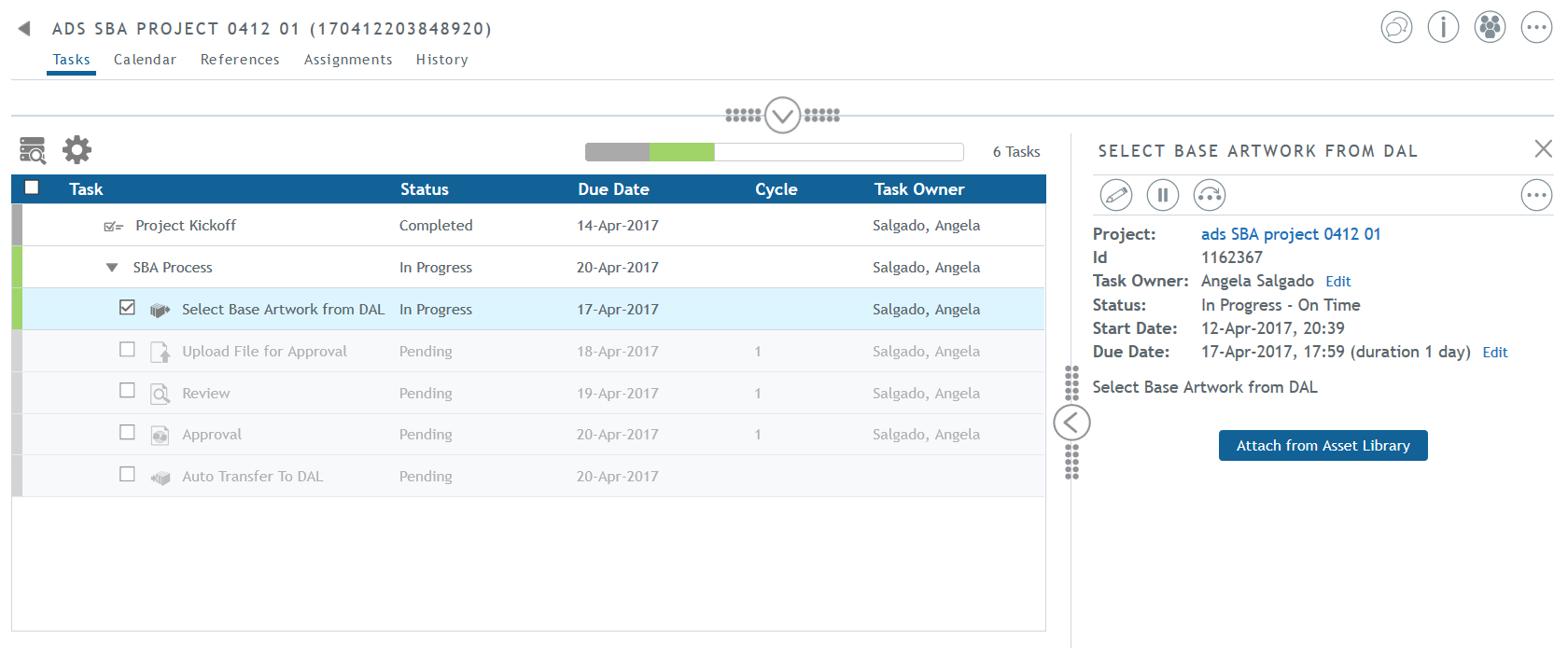
Select Base Artwork from Library Tasks |
This task allows a user to select one file from the library to use as a base artwork file for a new file that will be routed for approval. Depending on the template settings for this task, the user attaching the base artwork may be able to make annotations to indicate what changes are needed for the new artwork file. There may be additional Review tasks that follow this task, allowing more reviewers to mark up the base artwork.Base artwork files must be supported proofing formats. Adobe Photoshop (PSD) files are not supported. |
|
|
Automation Tasks |
The Automation task is a task within the workflow that was configured in the process template to execute a step or set of steps automatically in the system when this task is active or becomes in progress. |
|
|
Milestones |
These are markers for milestone events in the project. Milestones can be placed at any level of the project schedule. These tasks do not have task owners. |


Select Base Artwork from Library Task
If you are the task owner of a Select Base Artwork from Library task, you have been assigned to select an existing file from the library to use as the base artwork for a project or sub-process. Depending on the task’s template settings, you will be able to select the file and make annotations so that the task owner assigned to the Upload File for Approval task can see what changes are needed for the new artwork file. Other reviewers may also be assigned to review and markup the base artwork file. The original Library file will not be affected by any annotations added in the project.
Note: Base artwork files must be supported proofing formats. Adobe Photoshop (PSD) files are not supported.
To select a file as the base artwork, click on “Attach from Asset Library” in the right task panel.
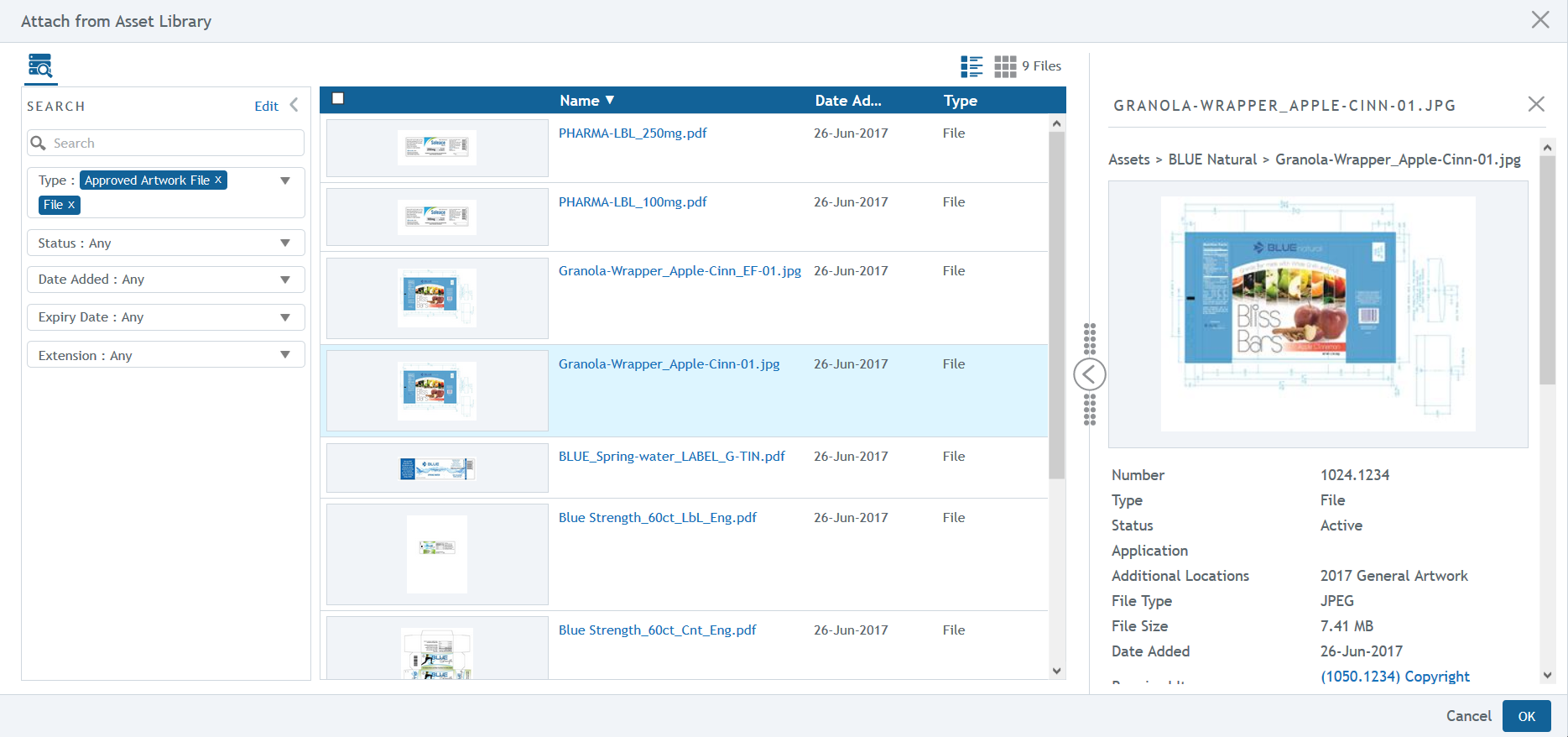
The attach file window will appear, in which, like the Asset Library, you can search via the folder hierarchy or type into the Search field. The number of results will depend on what file types were configured on the task in the process template. Once the desired file is found, click on the thumbnail to see its details in the right panel.
The asset’s details will display the projects and sub-processes that are using the same asset. A path to that project or sub-process and its status, will appear in the details panel.
You can only select one file. Click “OK.”
You can also narrow your results by adding or removing the configured types in the “Type” text box. The results will be filtered to the selected type(s).
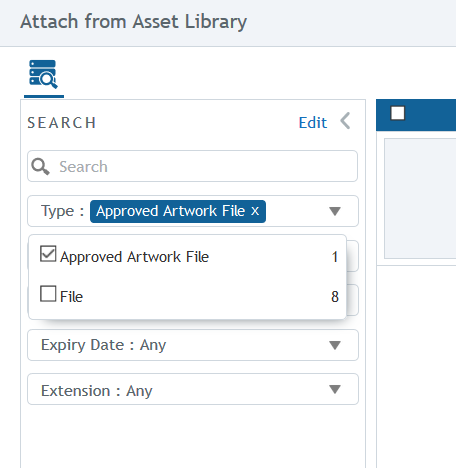
Note: If you edit the filters, and the field you selected as a custom filter, is a multi-value custom field and part of a constraint custom field set, this may cause delays in yielding results in the search window. When possible, this type of custom field should not be used as a search filter.
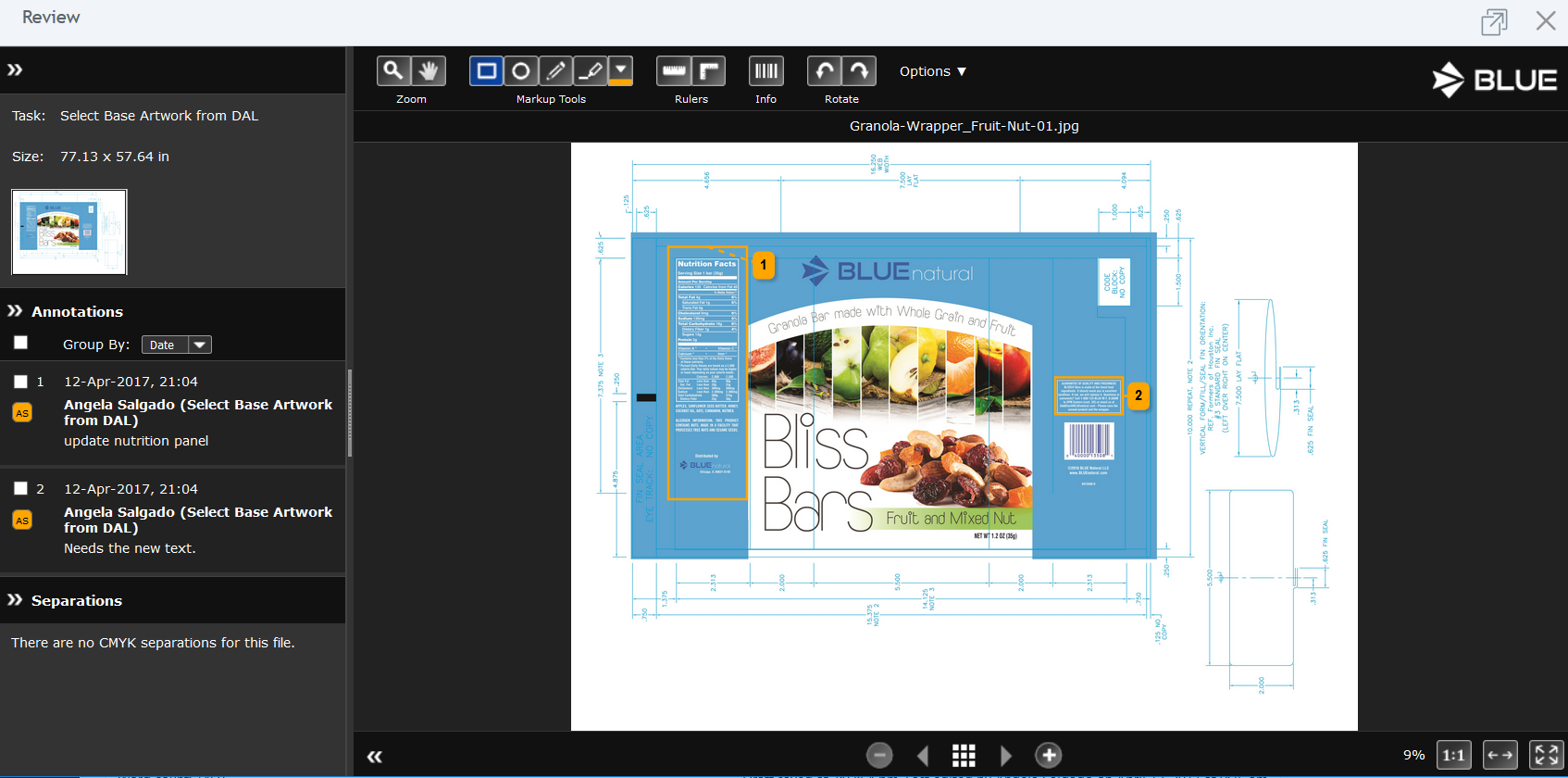
The selected file will appear in the task panel. You will see a thumbnail of the file and the file name. If the task was set to allow annotations, you will also see the “Review” button. Click on “Review” to open the proofing tool and add your annotations.
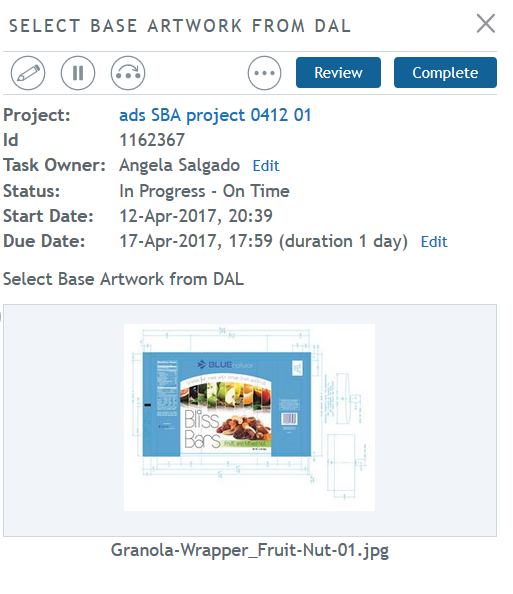
Once you are in the proofing window, you can add the annotations necessary to indicate to the task owner of the Upload File for Approval task, what is needed in the next revision of this artwork. The annotations will be saved and locked within the project once the Select Base Artwork task is completed. The original Library file will not be affected by any annotations added in the project.
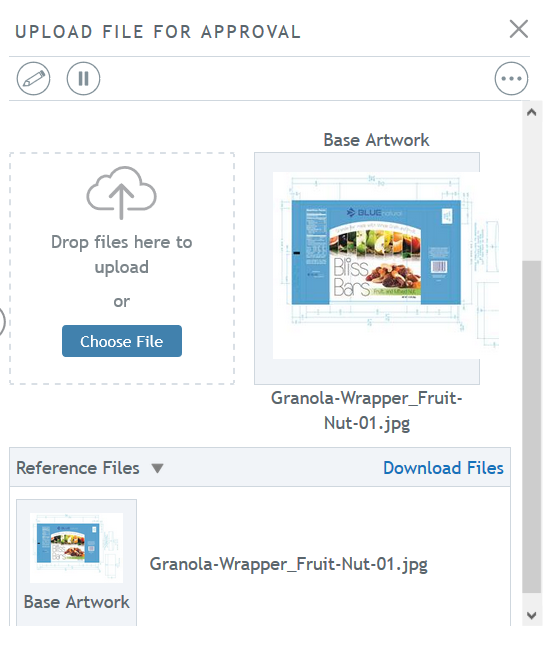
The task owner of the Upload File for Approval task will see the annotated base artwork file next to the area to upload the approval file. The task owner can view the file in online proofing by clicking on the thumbnail or after uploading the approval file.
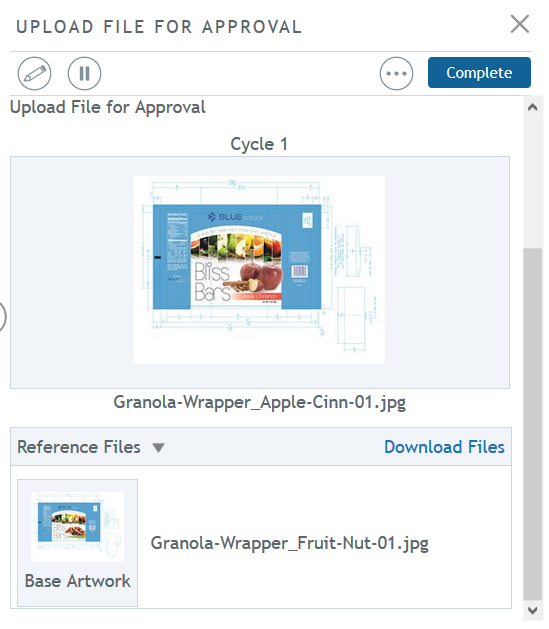
Once the approval file is uploaded, the base artwork file will appear only in the reference files area.
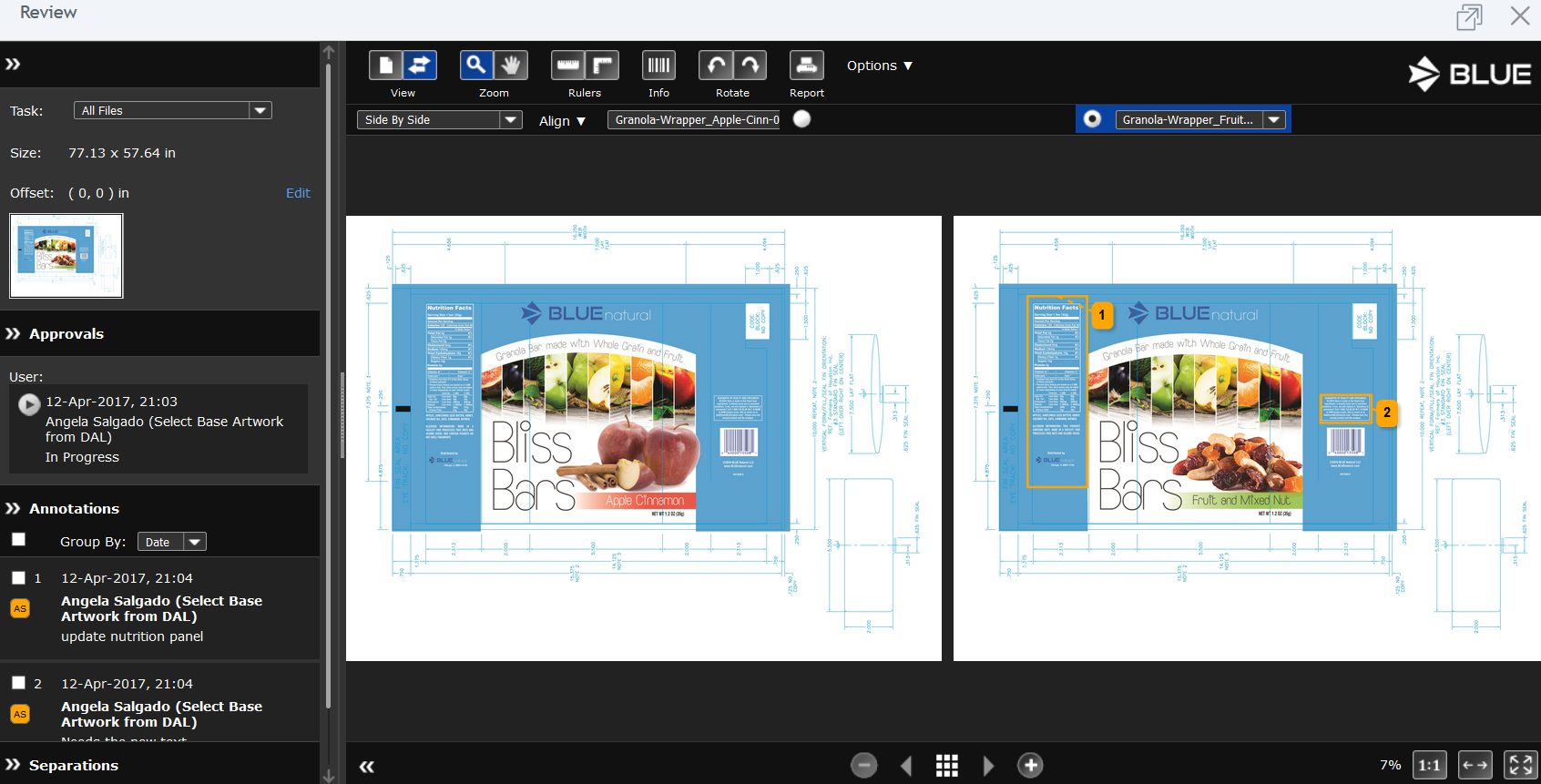
Subsequent task owners will also see the base artwork in their task panel, as a reference file, and in the proofing tool as a comparison file.
Base Artwork Review tasks
Depending on how your workflow is set up, a Review task may allow you to review and markup the base artwork.
Click the Review button to open the base artwork file in online proofing.

Base artwork reviewers add annotations and then complete their task in online proofing. Base artwork reviewers see annotations from other base artwork reviewers (including the person who attached the file in the Select Base Artwork from Library task).
The compiled annotations from all base artwork reviewers appear on the base artwork as a reference in cycle tasks, including the upload file for approval task.

Uploading files
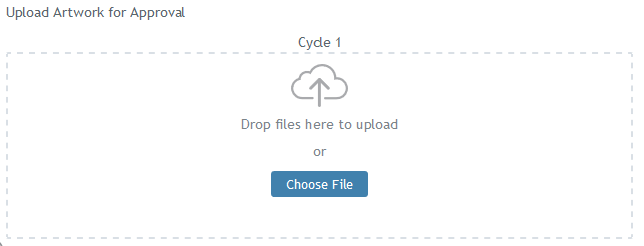
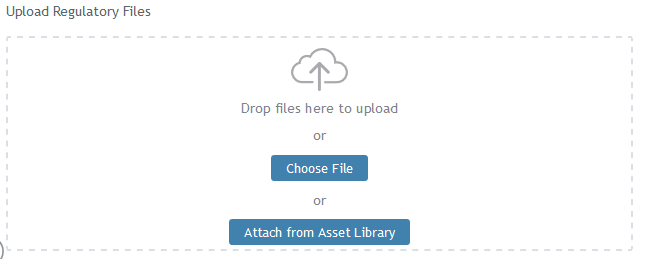
On an Upload File for Approval task or an Upload Reference Files task, open the task details panel by clicking on it. For upload tasks you will see a drop zone. Drag the file on the task details page to upload it.
-
- Upload File for Approval – you may only upload one file.
-
- Upload Reference Files – you may upload or attach one or more files.
- Depending on your template settings, the reference files you upload may have expanded visibility to the entire project. See Reference Files for more information.
Deleting files after upload
If you make a mistake and upload the wrong file, you can delete it. Just hover your mouse cursor over the thumbnail and click the trash can icon. This will remove the file so you can upload the correct version.

Completing upload tasks
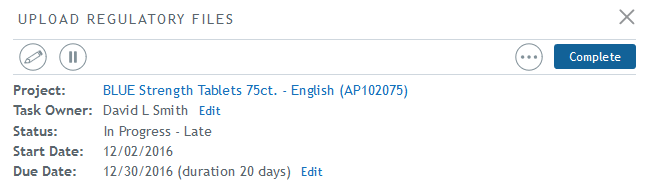
Once the files have have been uploaded, click the Complete button to mark the task as complete.
Reviewing and approving files
On the task details panel, you will see the thumbnail for the file that needs to be reviewed.
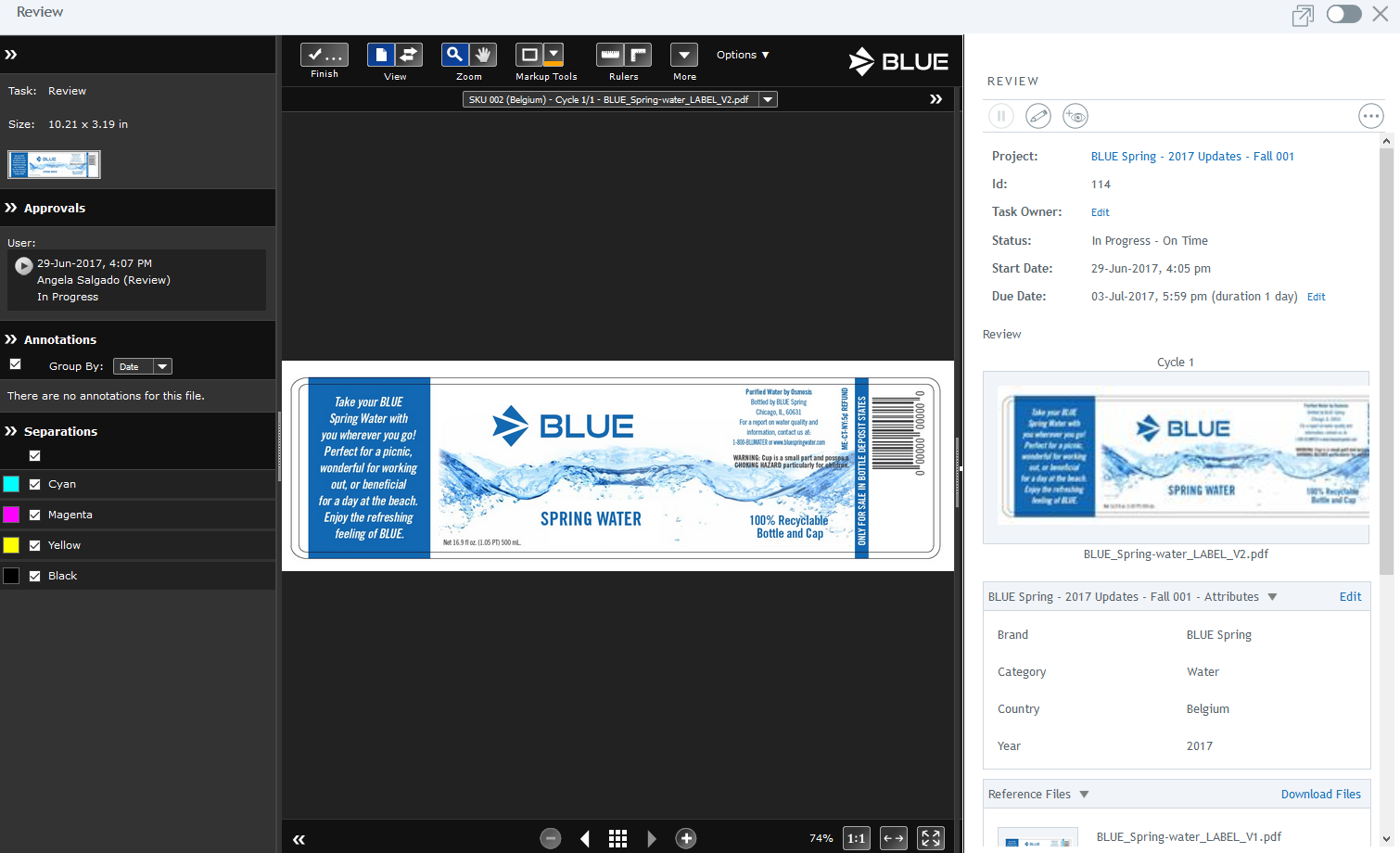
Click the Review button to open the file in online proofing where you will review or approve the file.
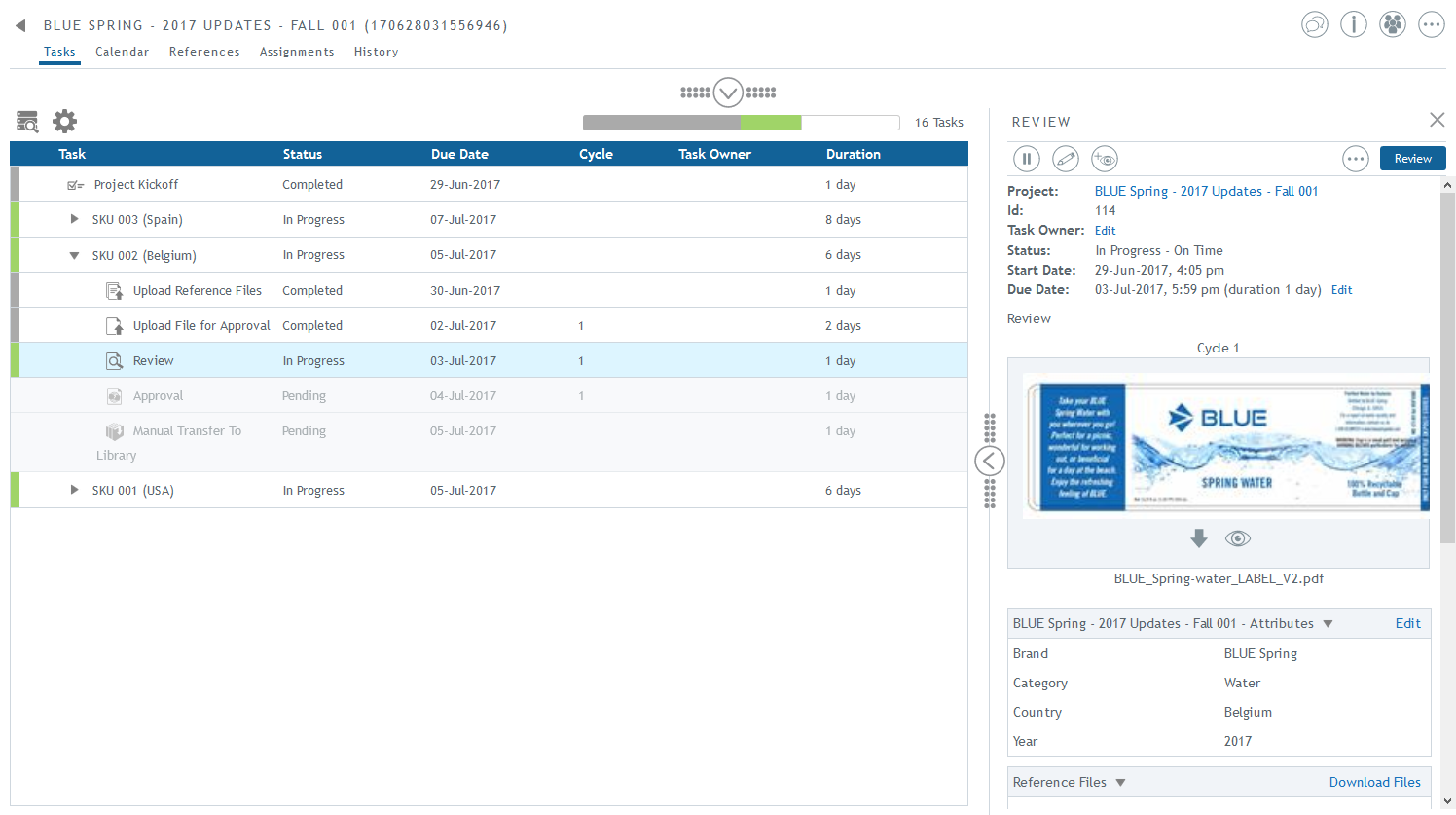
Once you click ‘Review’, the proofing window will open and you can review the approval file and add your annotation. You can compare files with other sub-processes or reference files, if configured. See Comparing Files for more information. In addition, you can:
|
|
Open the proofing window in a separate tab. |
|
|
Slide the task panel to open and close it. The task panel contains details of the task, such as attributes and due date. |


In online proofing, use the annotation tools to add comments. If there is a previous cycle, compare cycles in Compare View. When you are done, click Finish.
Approval Tasks
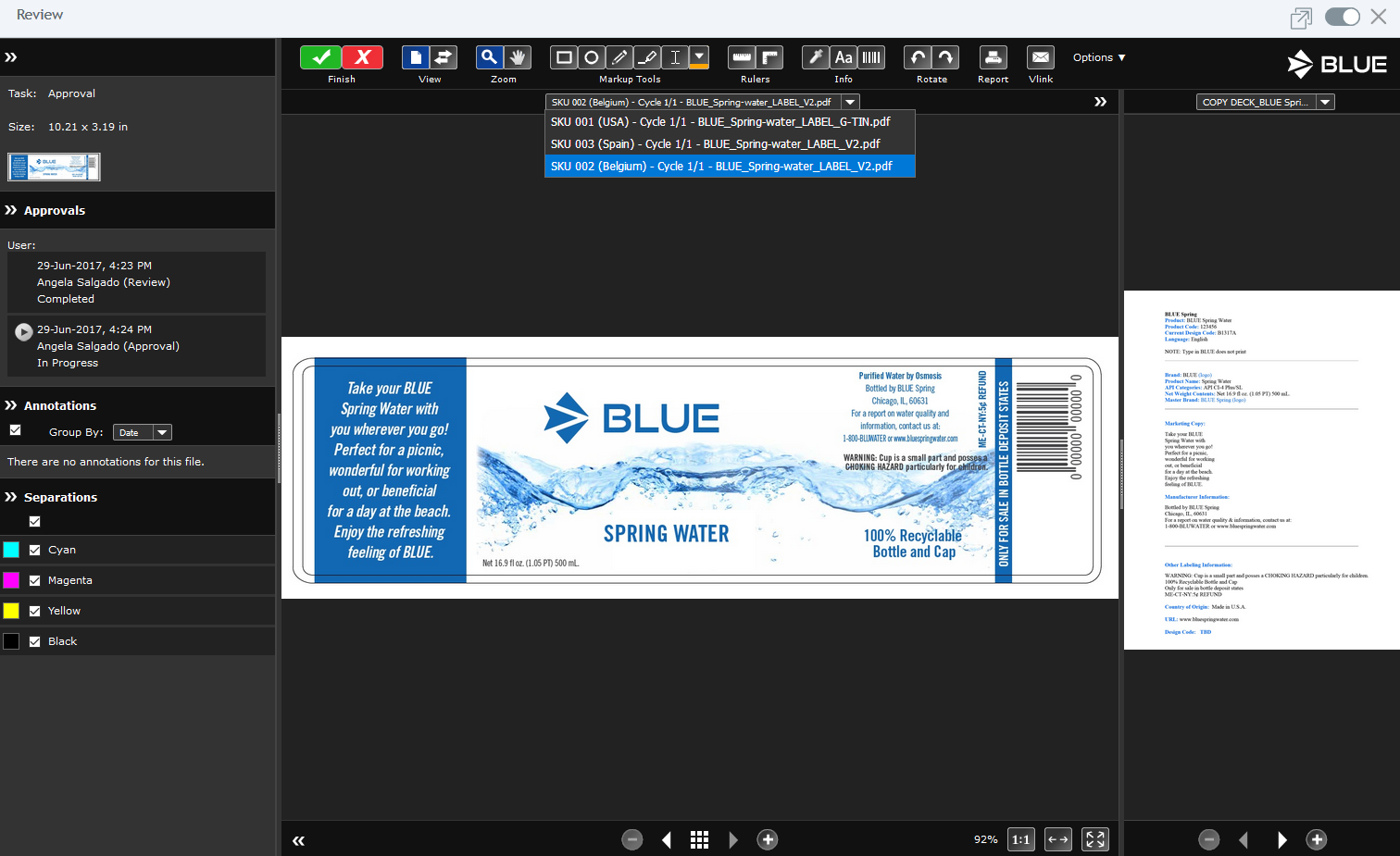
Use the annotation tools to add comments. If there is a previous cycle, compare cycles in Compare View. When you are done, set your approval decision by clicking Approved or Rejected. As soon as you click one of these approval decisions, the task will be automatically marked as complete in BLUE.
Setting annotation statuses
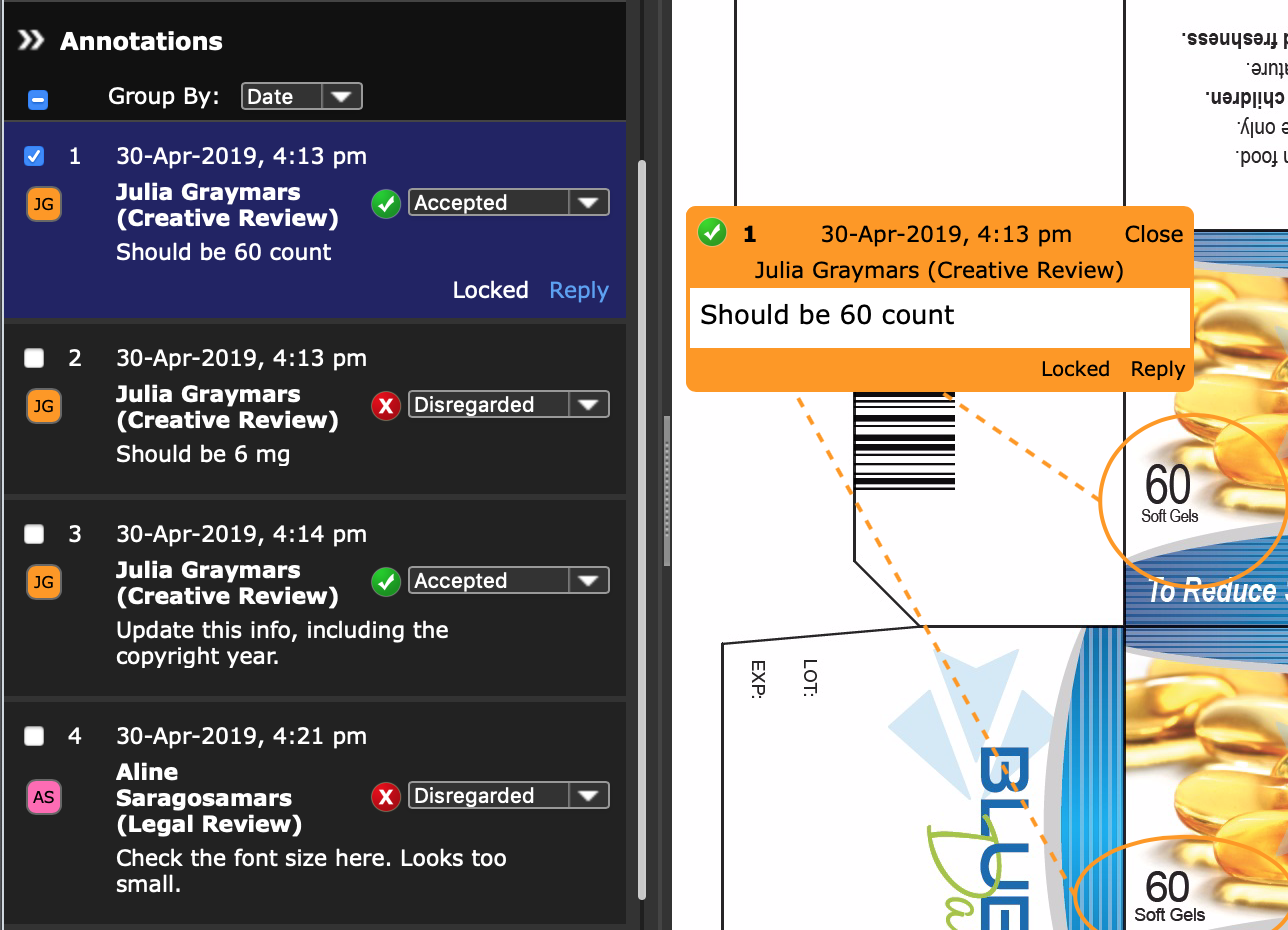
If you are a gatekeeper reviewer or approver, it is your job to review the annotations left by other reviewers and decide whether their comments are valid and need to be addressed in the next cycle or not. When in online proofing, set the status for each annotation so that the artwork designer who will update the artwork for the next cycle knows which annotations are important. The statuses are configurable so may be different from what is shown here. In this example, the gatekeeper reviewer has marked the important annotations that must be addressed in the next cycle as ‘Approved’.
Working with Cycles
Viewing the task history
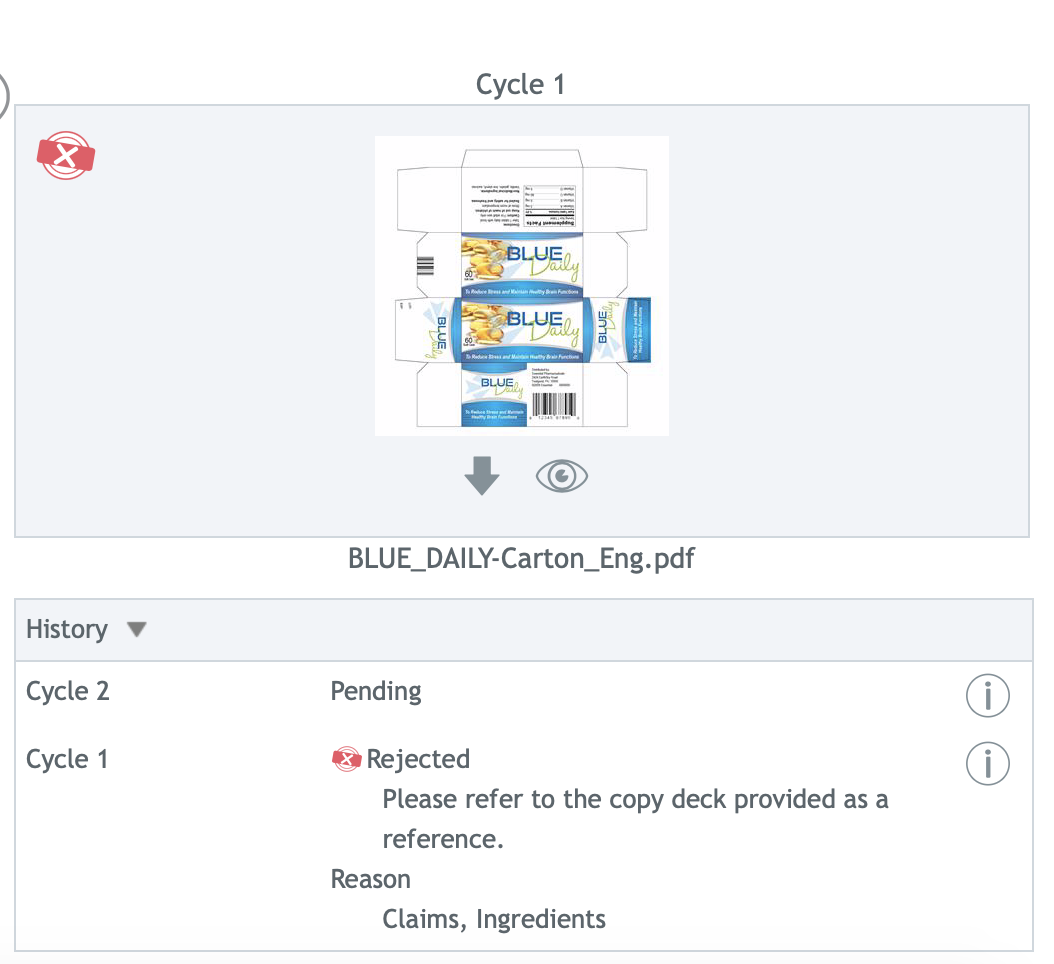
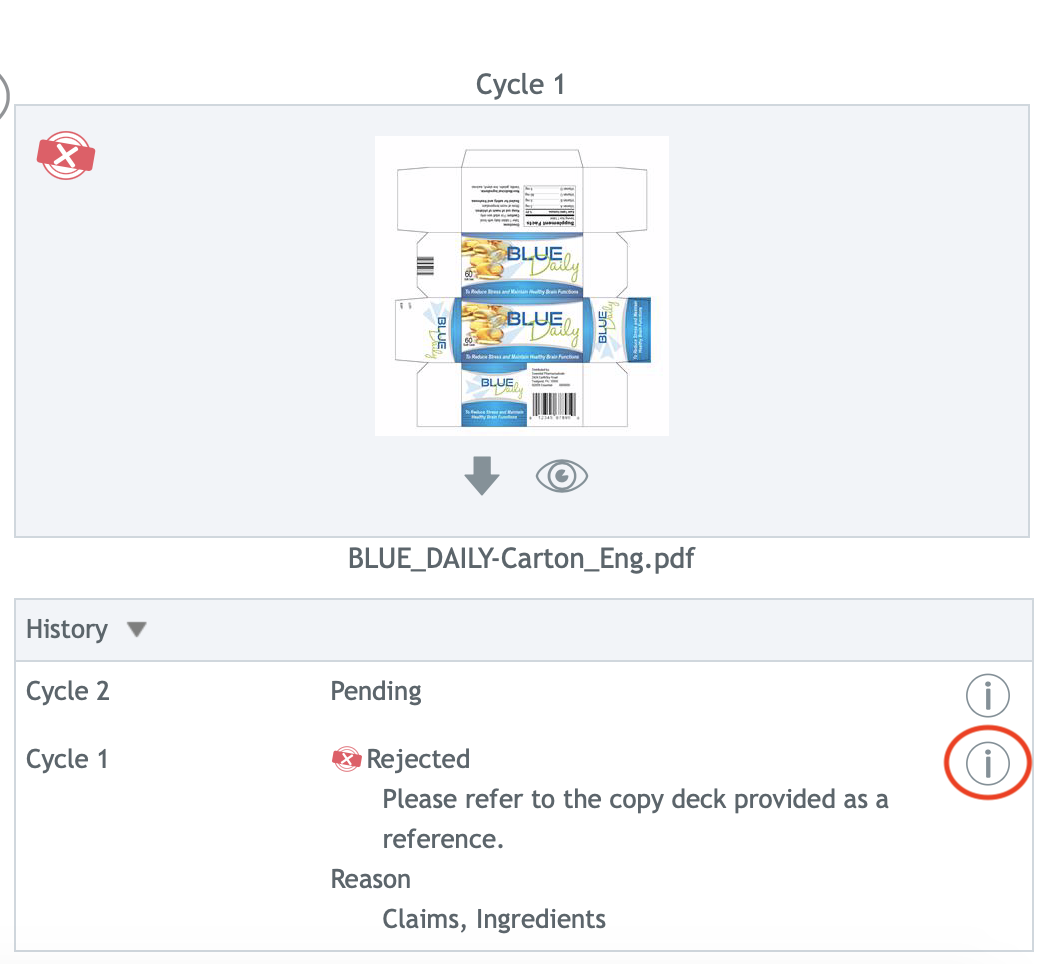
When there are two or more cycles, a History section appears on task details. The History section lists the task status for each cycle and its associated icon (if applicable). If a comment was entered when completing the task in online proofing, the comment is shown after the status. Similary, if a file was rejected in an approval cycle, the rejection reasons are shown here as well.
Here is the History section of task details showing the previous cycle was rejected in the last cycle, along with the comment entered when completing the task and the rejection reasons.
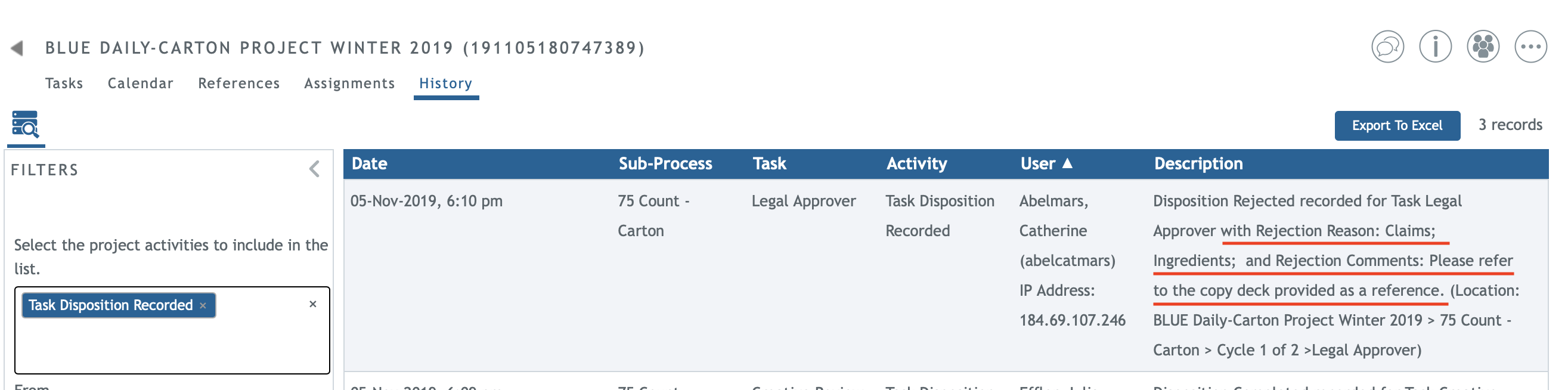
If you have access to the project History tab, you will also see the comments and rejection reasons here.
Viewing previous cycle attributes
You may view the attribute values for a previous cycle by clicking the info icon in the task History section. This opens an info pop up with the information for that cycle.
Viewing previous cycle annotations
When a new cycle is created due to a rejection, the Review button in task details is available for the artwork designer who will upload the new approval candidate.
Reviewers and Approvers may also go back to their Review and Approval tasks and click the Review button while the Upload File for Approval Task is underway. This allows reviewers and approvers to access their annotations and approvals and clarify any questions about the comments they made for the artwork designer.

Viewing previous cycle annotation statuses
If you are the artwork designer who will upload the approval candidate, click the Review button to open online proofing.
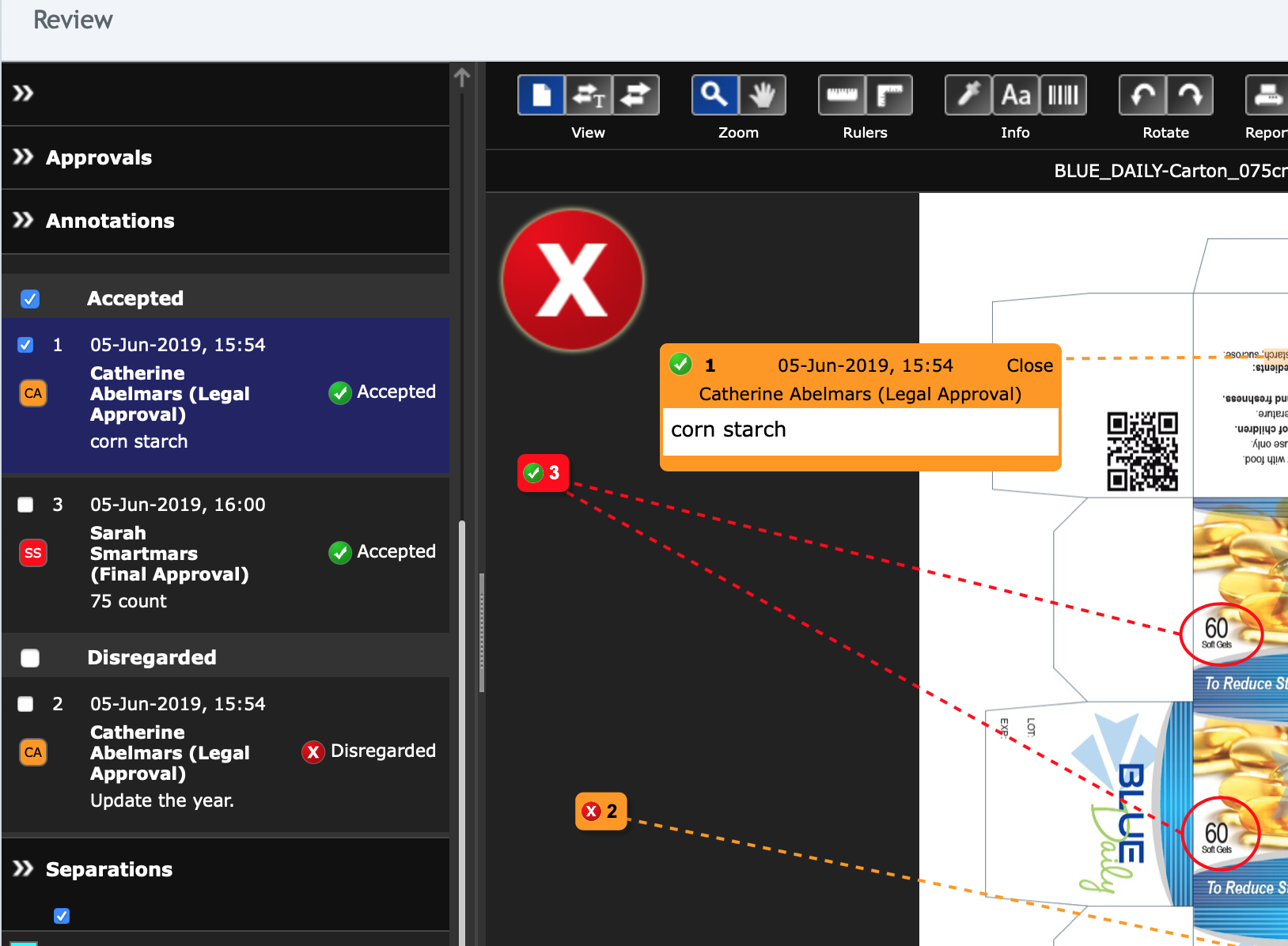
If your system and template are configured to use annotation states, you will see a status next to each annotation, indicating its importance. These statuses have been assigned by a gatekeeper reviewer and let you know which annotations must be addressed for the next cycle of artwork. Here, the statuses are grouped by annotation status.
Working with Task Attributes
Setting attribute date values
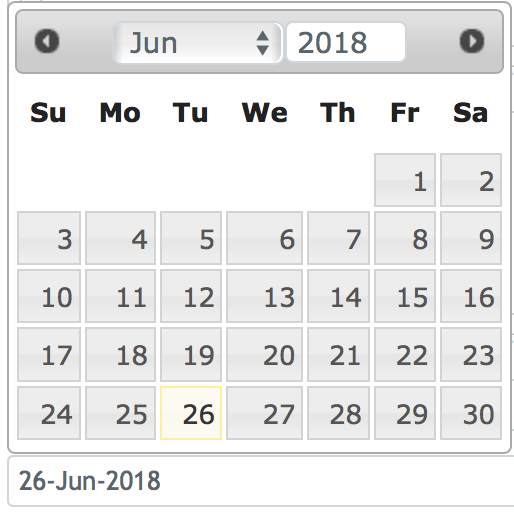
If a task has a date field that needs to be filled in, click on the date field to bring up the calendar. You can choose a month from the drop down, or use the arrows to navigate between months; type a year in the input box.
Attributes in new cycles
Many tasks in BLUE have attributes, which may be optional or required. Required attributes must be completed before completing your task . When a new cycle is created because a cycle is rejected, canceled, redone or rewound, the following rules exist for copying cycle task attributes to the new cycle:
– Retain required attribute values for cycle tasks on the new cycle. Clear optional attribute values.
– Except, if the task is a Complete Form task that saves the form as an approval candidate in the workflow, then copy both the optional and required attribute values to the new cycle.
Downloading project files
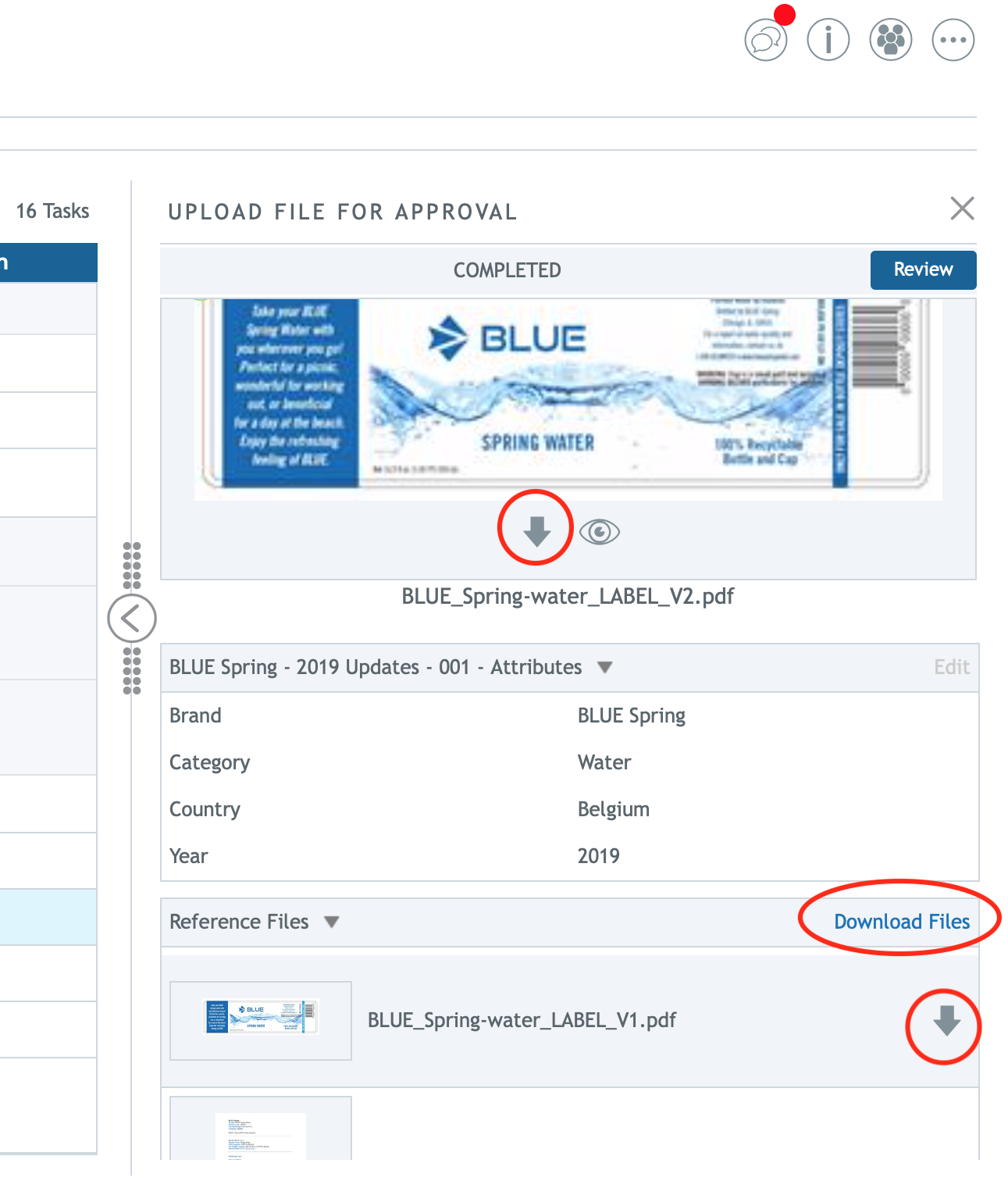
If you have download permissions, download the approval candidate or reference files from any task in a project to view it outside of the system. The Download option will be visible below the approval candidate thumbnail in task details, or in the Reference Files section when hovering over the reference file row, if it is allowed.
Sharing reference files from a task
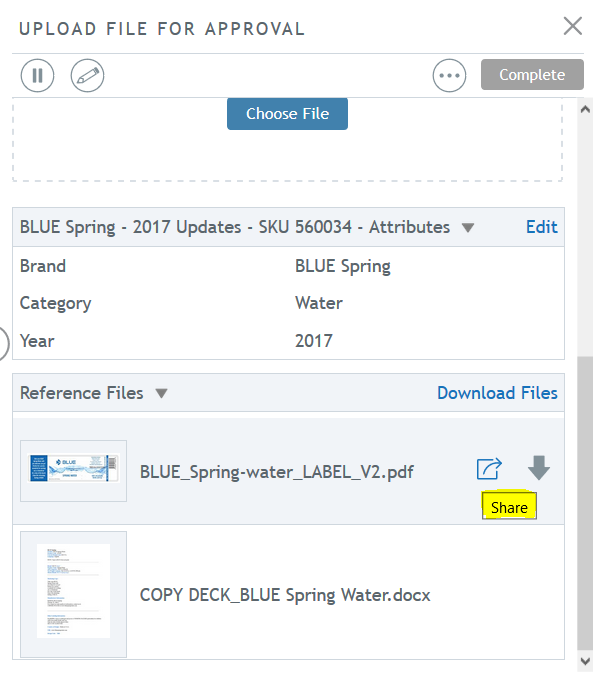
You can share reference files from your task with other BLUE and non-BLUE users so that they can view and download these files. Select the reference file you want to share from your task and click Share.
Note: The Share file option is available for supported proofing file formats. Adobe Photoshop files may not be shared in project context.
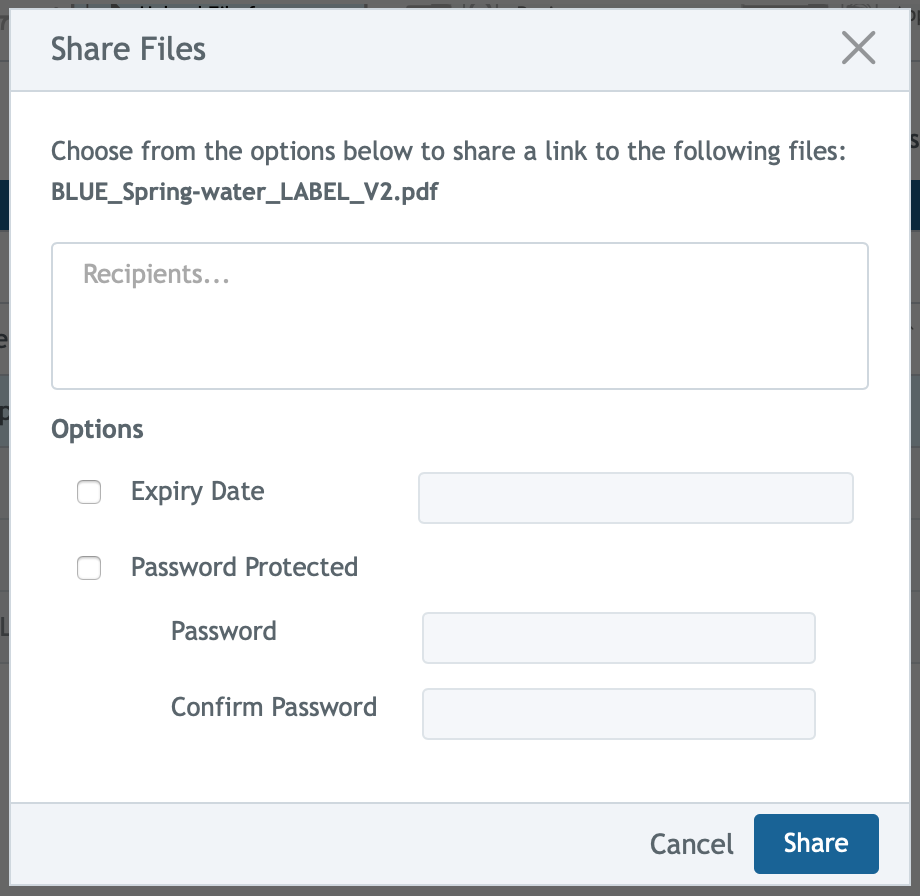
In the Share Files dialog, select the recipients or type in an email address. You can set an optional expiry date or password to limit who can access the file. If you choose to password protect the file link, enter a password of your choosing that will be needed when redeeming the file link and then confirm the password.
Recipients of the shared file links will be notified by email.
An audit trail is recorded when a file link is created and redeemed.
For more information on task-related topics, visit these links…
To learn about creating and managing projects, see Projects.
To learn about automatically transferring files to the library, see Transfer to Library Tasks.
To learn more about the viewing reference files, see Reference Files.