What is a Sub-Process?
A sub-process is a self-contained unit of work, represented in a BLUE project by a group of tasks. Defined on the process template, the sub-process itself can have its own name, settings, and rules. In a business workflow, a sub-process can represent flavors, brands, SKUs, or any grouping that contains a set of tasks that need to occur together. Tasks can be also be added before and after a sub-process and may or may not have dependencies on the sub-process. See Process Templates for more information.

What is an auto-generated sub-process?
Many times in a business workflow, sub-processes are created and duplicated within a project to represent a group of tasks that will guide the revision or updates of artwork files. The previously approved artwork files, or the base artwork, will be attached to the sub-process to serve as the reference for an approval process of a new file. In addition, the Auto Transfer to Library task can be set up within the sub-process to automatically transfer the new file to the same location as the original base artwork.
Note: Automatic Sub-Process Generation (ASPG) is an advanced feature and may not be available for your system. For more information, please contact your administrator.
There are two ways to have sub-processes automatically created in a project:
1. Select a file from the library
The file already exists in the library and its file type has been defined on the template to be an allowed file type. On “Create Project,” after selecting the template, you will see the option to add files to create sub-processes.
2. Select a folder from the library
A folder in the library can be selected if its file type has been defined on the template to be an allowed type. On “Create Project,” after selecting the template, you will see the option to add one or more folders to create sub-processes.
Setting up auto-generated sub-processes in the process template
Step 1: Create a process template with a sub-process.

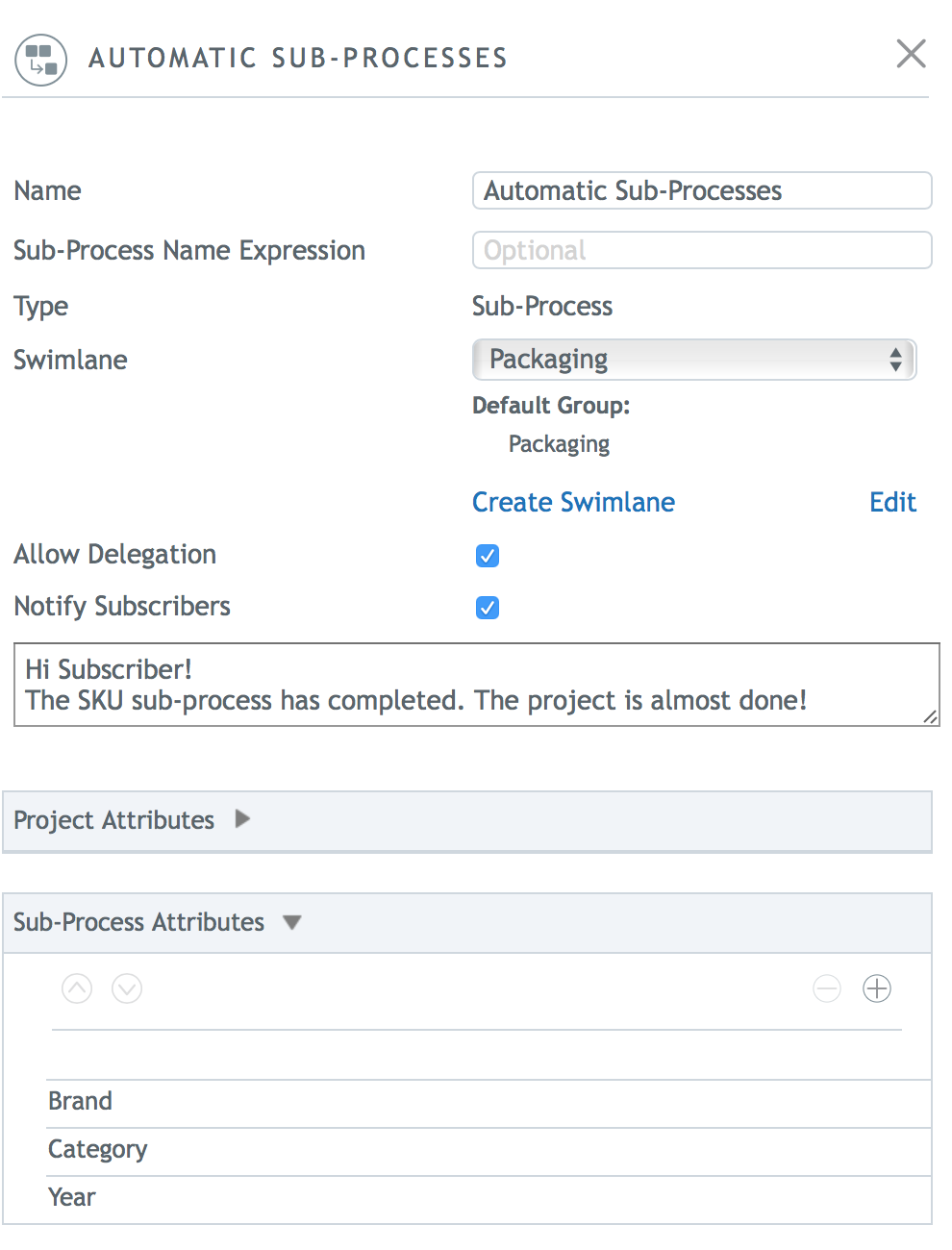
Step 2: Enter your desired settings for the sub-process. See Task Node Settings for more information on setting up nodes.
Step 3: Add the attributes that you want at the sub-process level. Attributes values will be copied on project creation from the library assets to its sub-process, if the attributes match. For example, if one of the attributes on the library asset is “Brand = BLUE Daily Vitamins” and the sub-process has “Brand,” then the value “BLUE Daily Vitamins” will be copied to the sub-process. We’ll see this when we create a project.
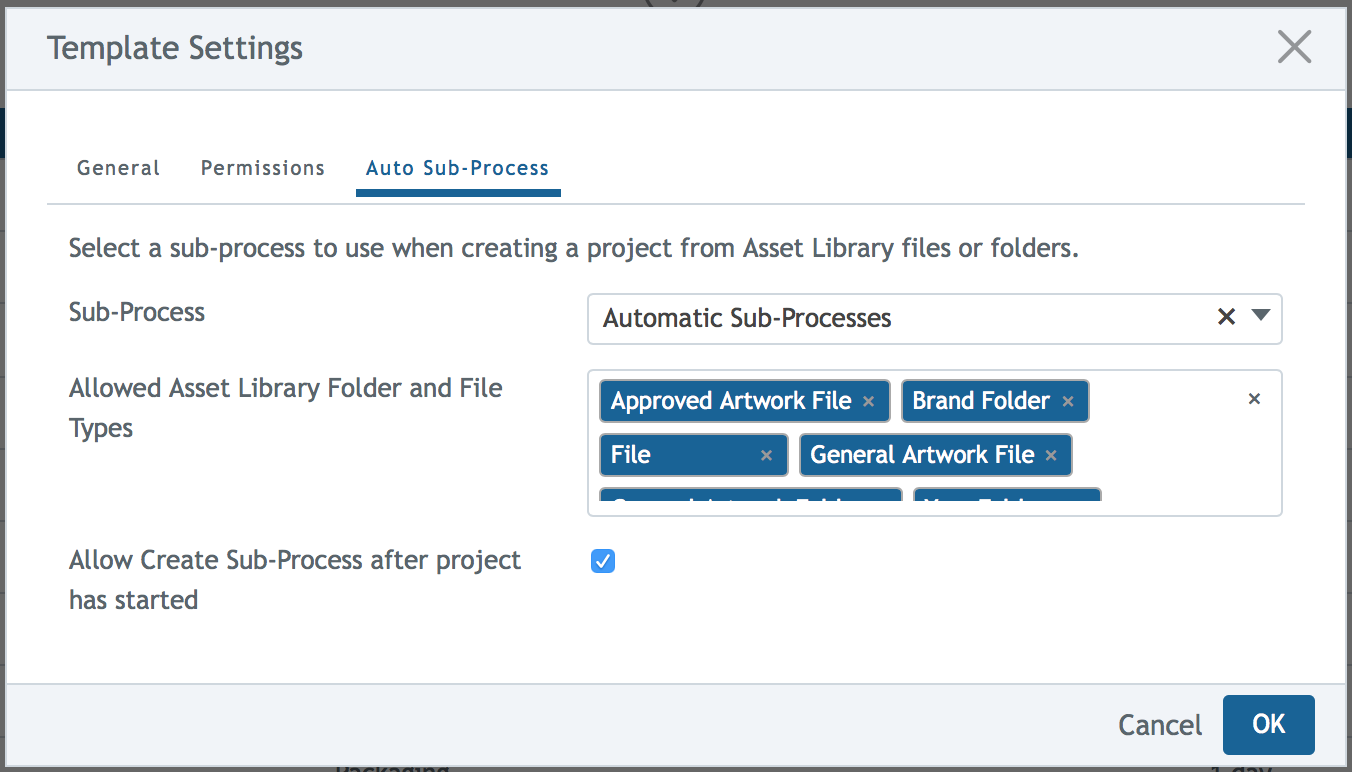
Step 4: To set up the Auto Sub-Process creation, click on template settings.

Step 5: Click on the Auto Sub-Process tab within the settings. Here you will be able to select which sub-process will be driving the auto-generated sub-processes in your projects. You may have more than one sub-process in your template, but you can only select one sub-process to drive this setting.
Add the allowed asset library folder and file types. These selections will narrow down the number of files and folders that appear in the search results to match those types.
Clear the “Allow Create Sub-Process after project has started” checkbox if you wish to disable the Create Sub-Process option on the project more options menu after the project has started.
Click OK to save the settings.
Note: Users creating projects and selecting assets from the library will still need to have permissions to see those library items.
Step 6: “Validate and Save” your process template.
Creating a project with auto-generated sub-processes
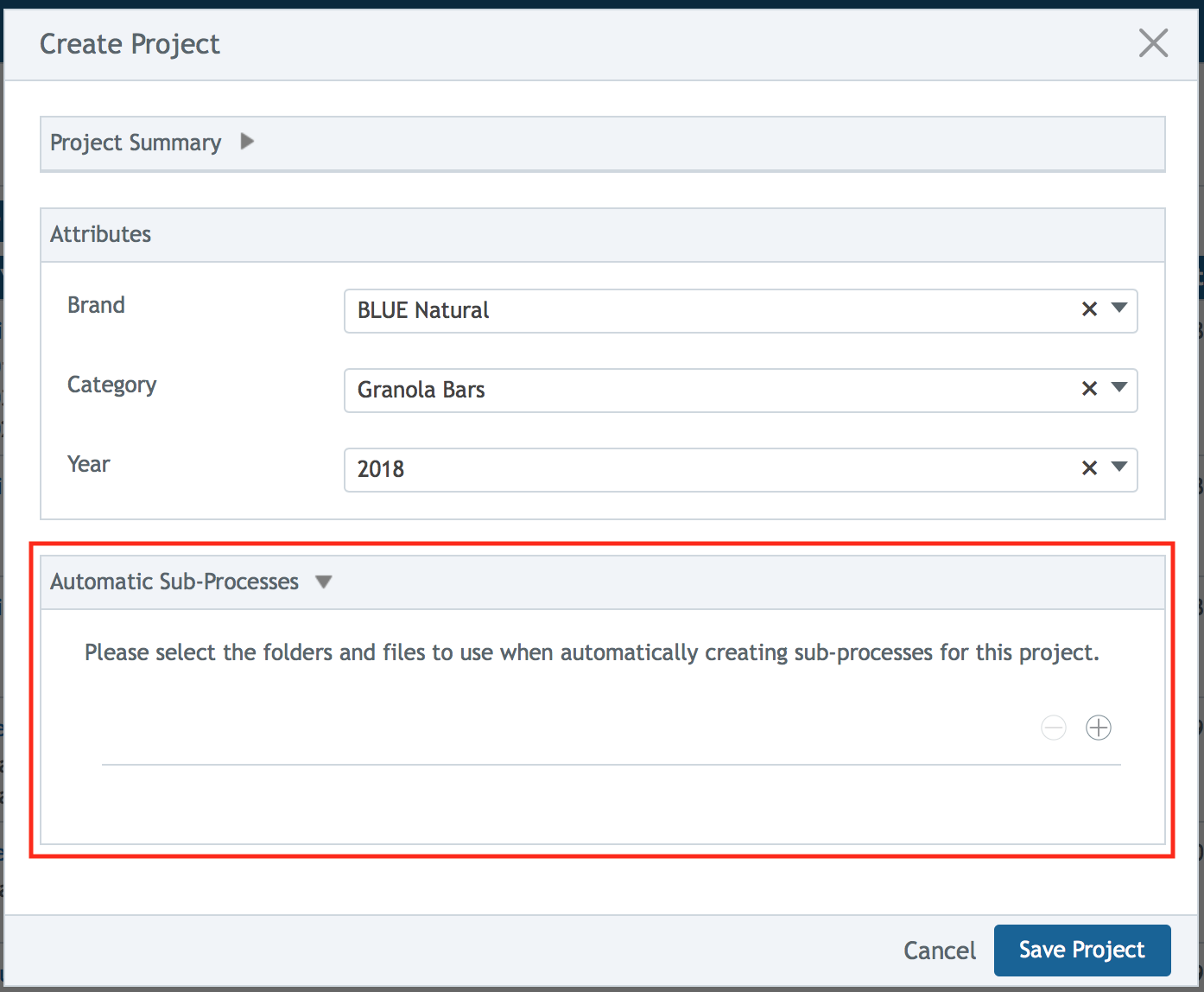
Now that a process template has been saved with the settings for auto-generated sub-processes, you are ready to create a project and have sub-processes based on files and folders automatically created.
Step 1: Open the “Create Project” window. After selecting the template you have configured for auto-generated sub-processes, you will see the sub-process section on the screen. Click on the “Add”  icon to open the file and folder selection page.
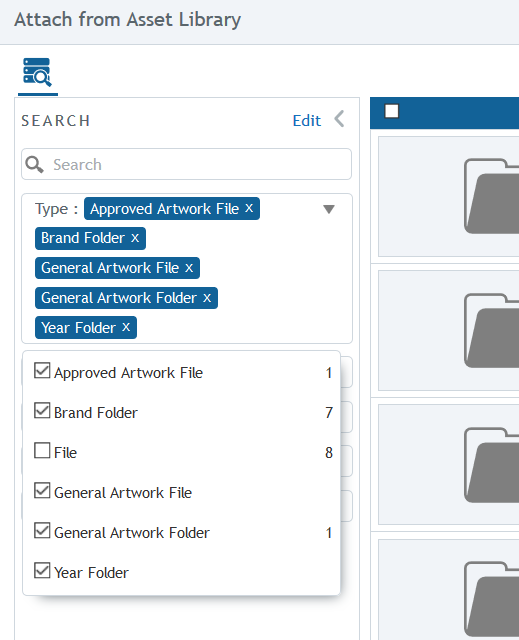
Step 2: You can search for files and folders by entering text, such as file or folder name, number, or attribute values, in the “Search” field. You can also use the filters in the left panel to narrow down your search. Types configured on the template will appear in the Type filter, you can add or remove types to help narrow the results. In addition, you can select from other filters to reduce the number of results even more.
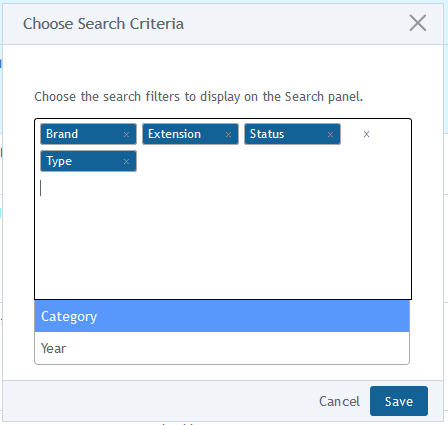
Step 3: To add custom fields to the available filters, click on “Edit” to Choose Search Criteria. The list of available custom fields will depend on the types that were configured in the template. Once you exit the Attach from Library window, your search criteria is not saved.
Note: If the field you selected as a custom filter, is a multi-value custom field and part of a constraint custom field set, this may cause delays in yielding results in the search window. When possible, this type of custom field should not be used as a search filter.
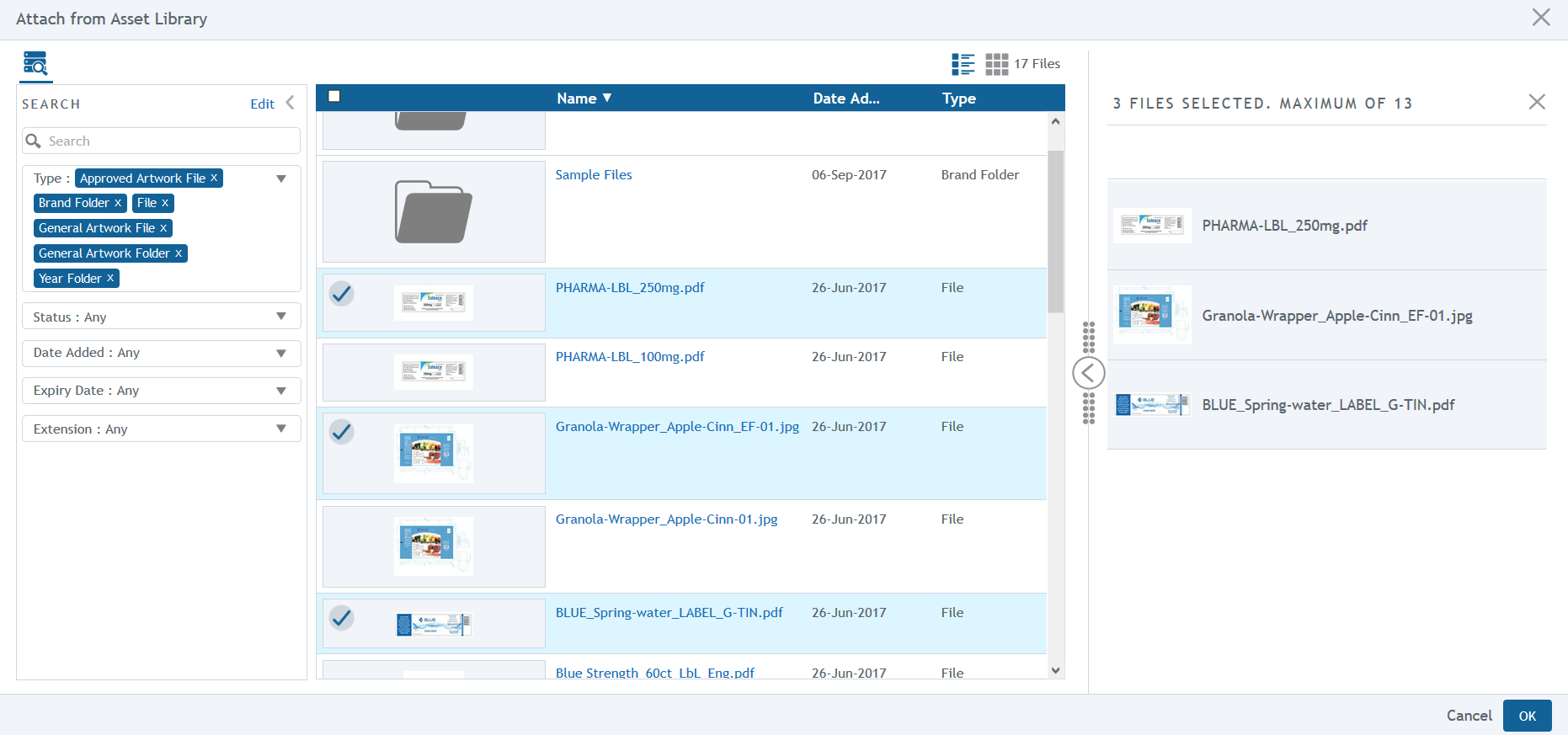
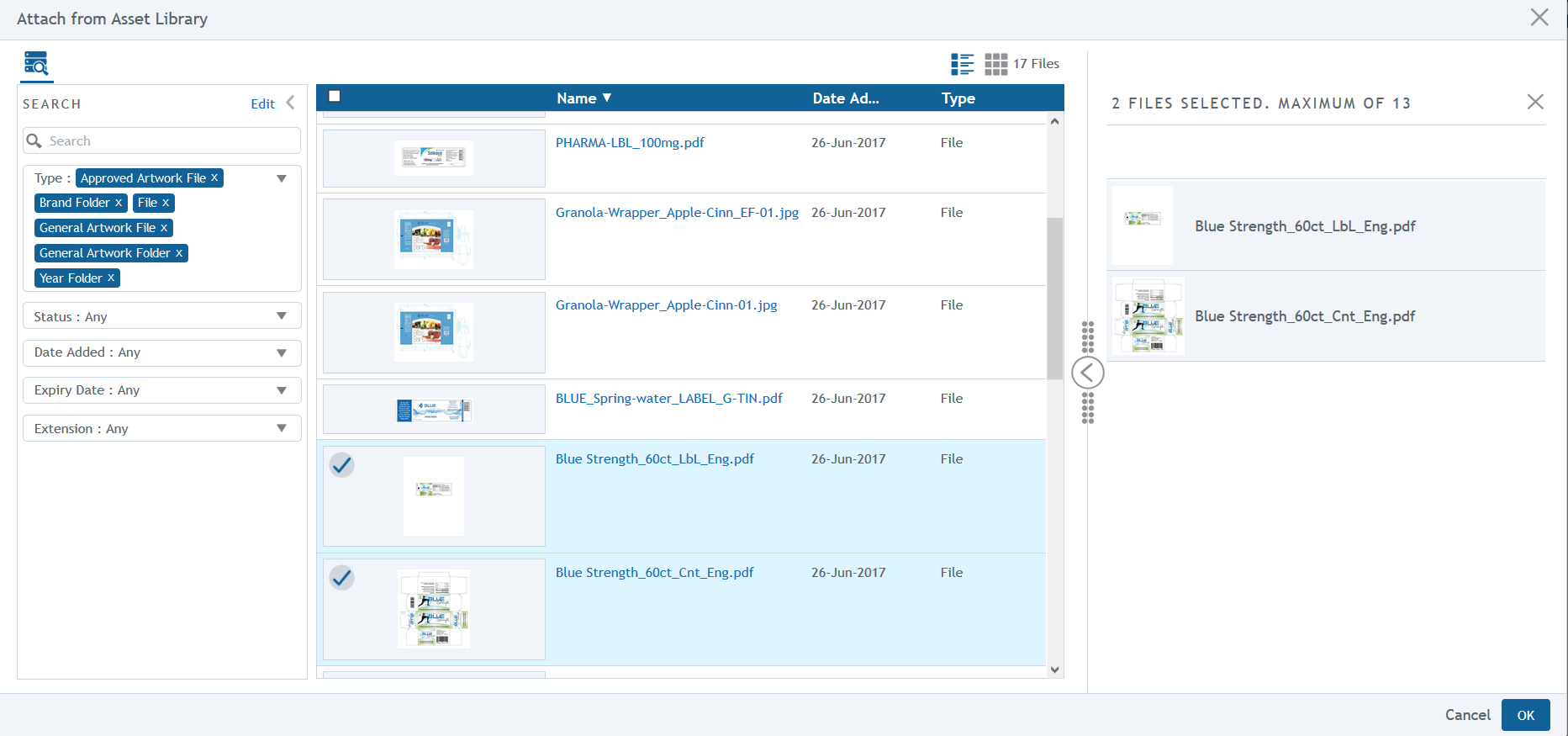
Step 4: Select one or more files or folders to add to the right panel. These selections will be the sub-process generation assets to create each new sub-process. To select a library item, click in the top left area of the thumbnail image. To remove a selection, click in that same area. Once you have completed your selection, click “OK.”
Note: To select the same library item more than once, save these selections and return to the Create Project screen. Click on the “Add” icon again to select the same files.
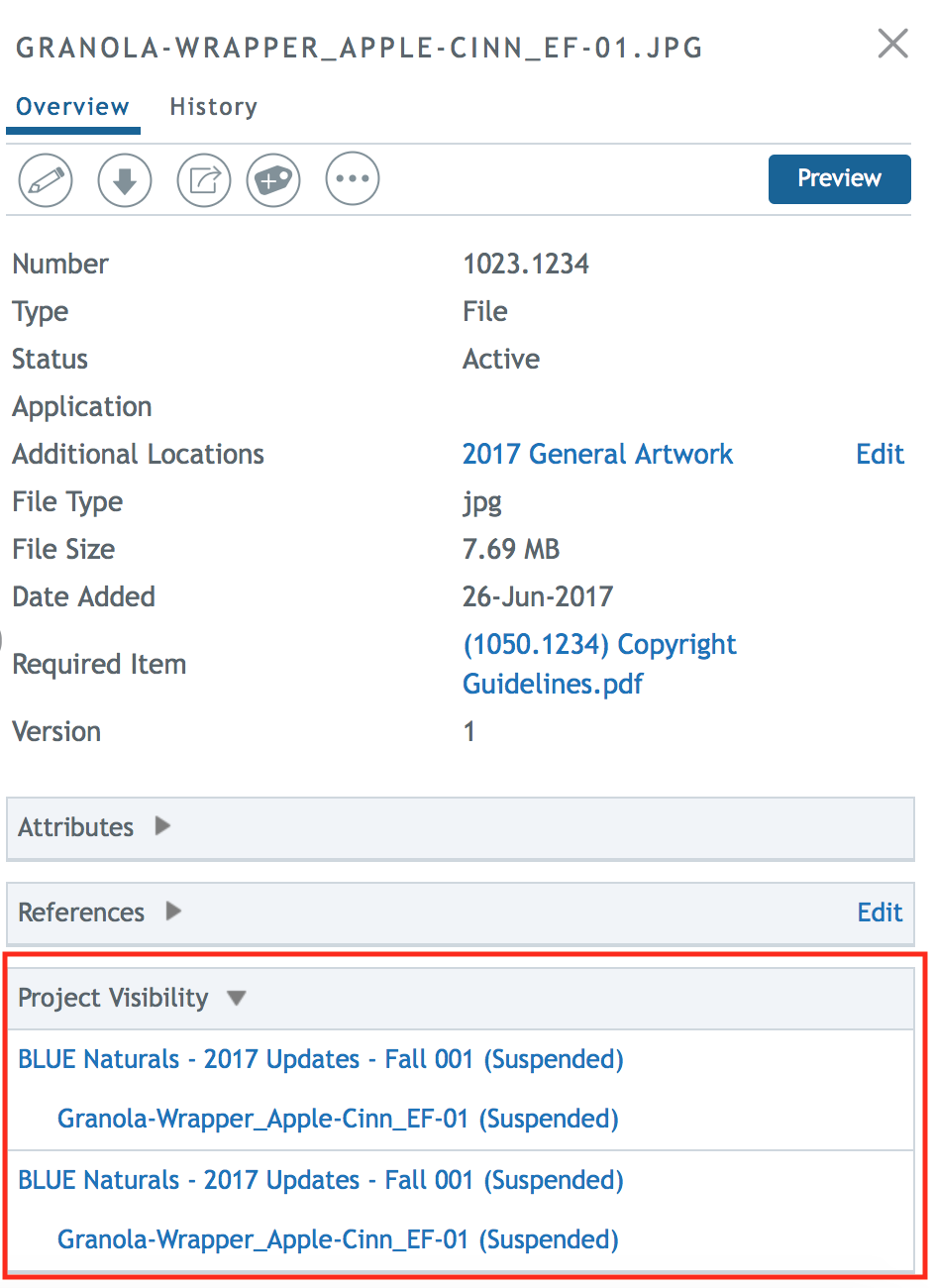
While searching for assets in the library to create your project, you may encounter ones that have references or links to other projects and sub-processes. If an asset, like the one below, has projects and sub-processes listed in its details, then this particular asset is being used in those locations. Names of the projects and sub-processes are listed with clickable links back to the projects, along with their statuses.
Step 5: Once all the files or folders have been selected to create your project, you will return to the “Create Project” screen. The sub-process area will list the files and folders you chose in alphabetical order, this is also the order in which the sub-processes will appear in the project.
To add more library assets, click on the “Add” icon.
To remove library assets, select the item and click on the “Remove”  icon.
icon.
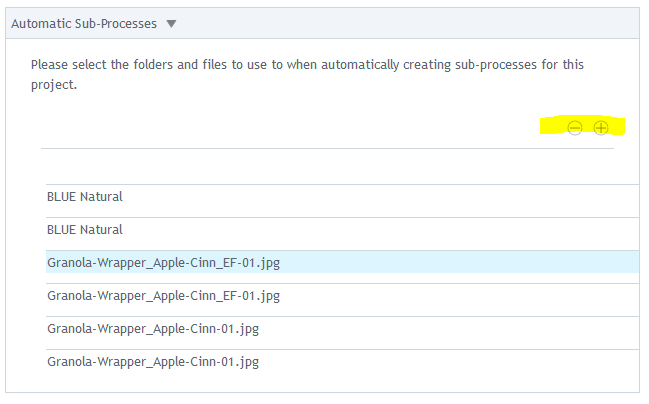
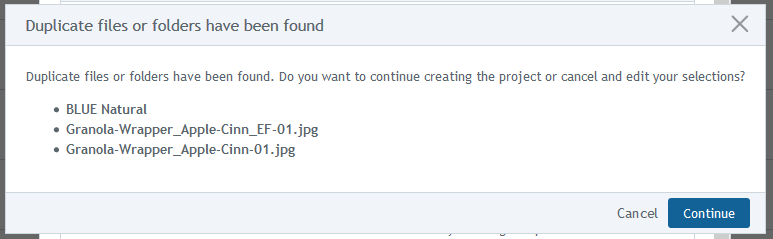
Step 6: Click on  to finish creating the project. If any duplicate assets were selected, you will be notified. You can choose whether to modify the list by clicking on, “Cancel,” or “Continue” to save and create the project.
Exploring the auto-generated sub-processes
In the newly-created project, you will notice that a sub-process was created for each file or folder selection. In this case, we have six parallel sub-processes. Unless otherwise configured, the name of the file or folder will also be the name of the sub-process. File extensions, such as *.pdf or *.eps are removed from the name. To learn more about how to set up automatic naming on sub-processes, see Auto Project and Sub-Process Naming.
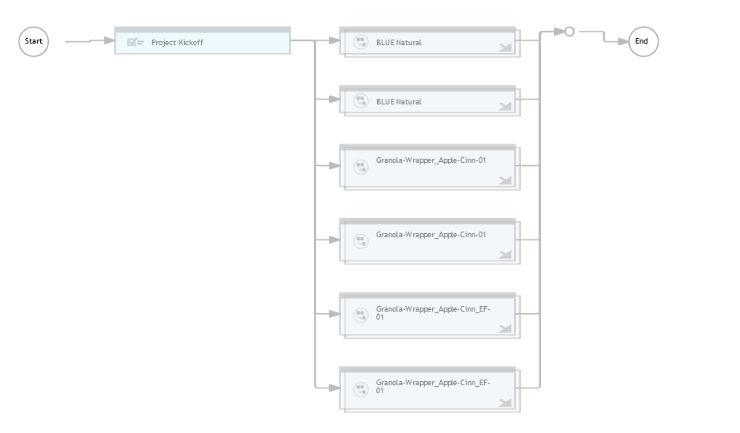
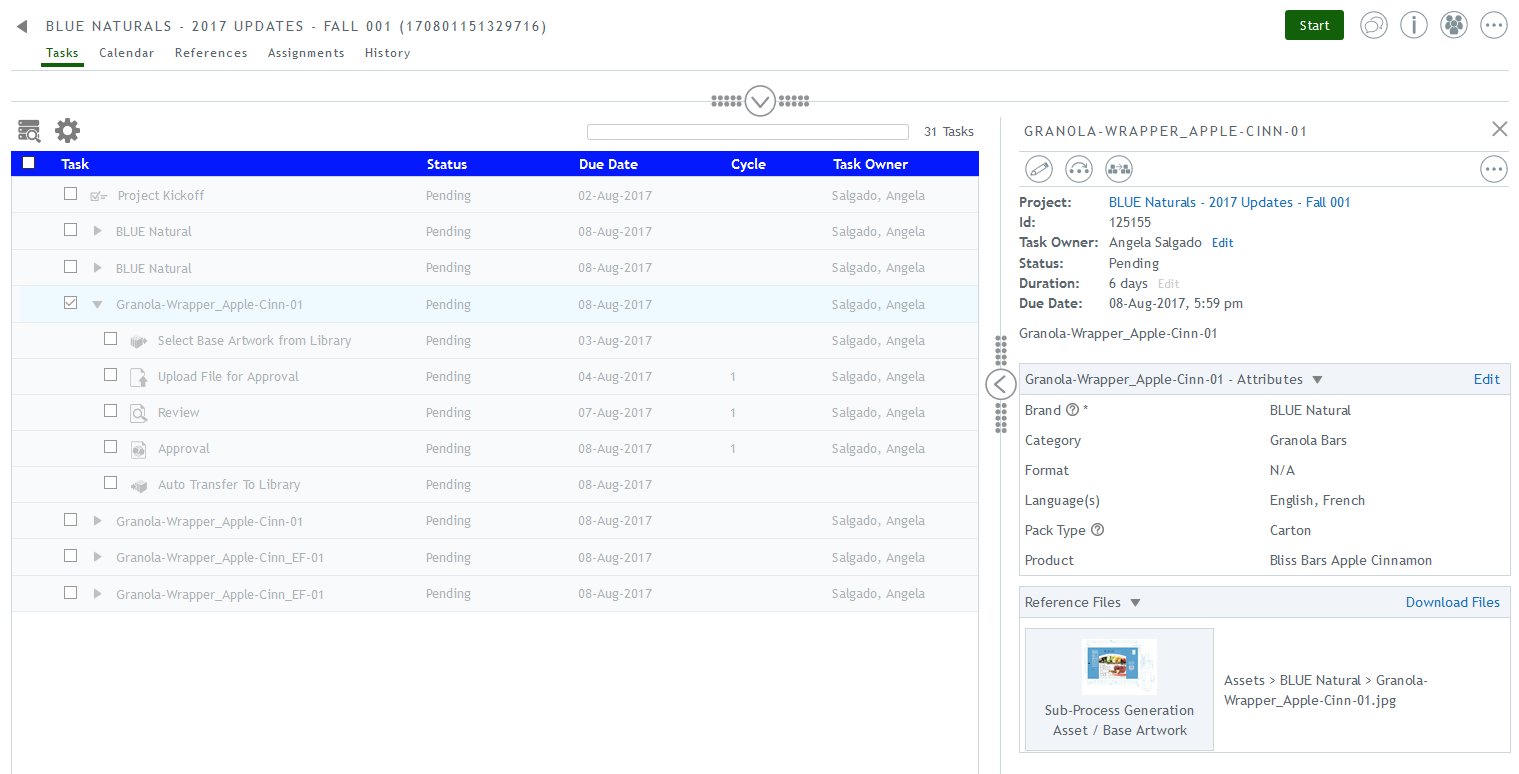
Click on the sub-process in the task list to view its details in the right panel. The file that was selected when the project was created appears in the Reference file section as the “Sub-Process Generation Asset / Base Artwork.” The tasks within the sub-process will also have the base artwork file in the same area.
The values from the base artwork file’s attributes were also copied to the matching attribute fields of the sub-process.
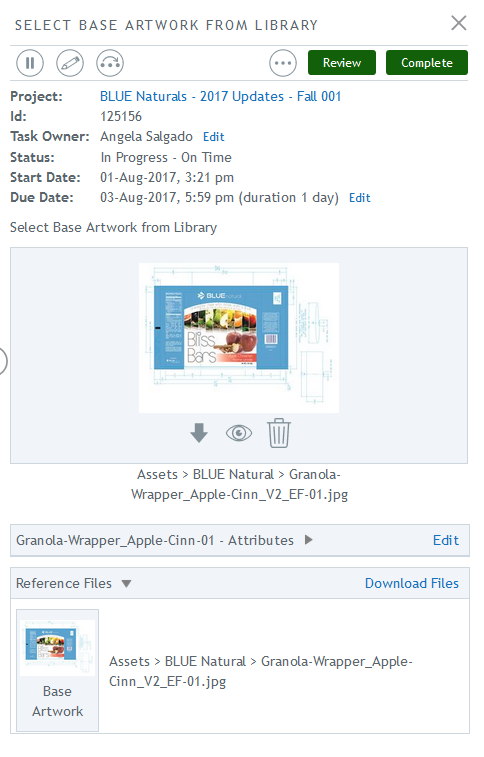
Select Base Artwork from Library task
Sub-processes configured for auto-generating sub-processes can also contain a Select Base Artwork from Library task within them. Task owners will be able to select a file in the Select Base Artwork from Library task, which can be the same, or different, from the original file selected in the creation of the auto-generated sub-process project. In some cases, the task owner will also be able to annotate the base artwork file, if it was configured in the template.
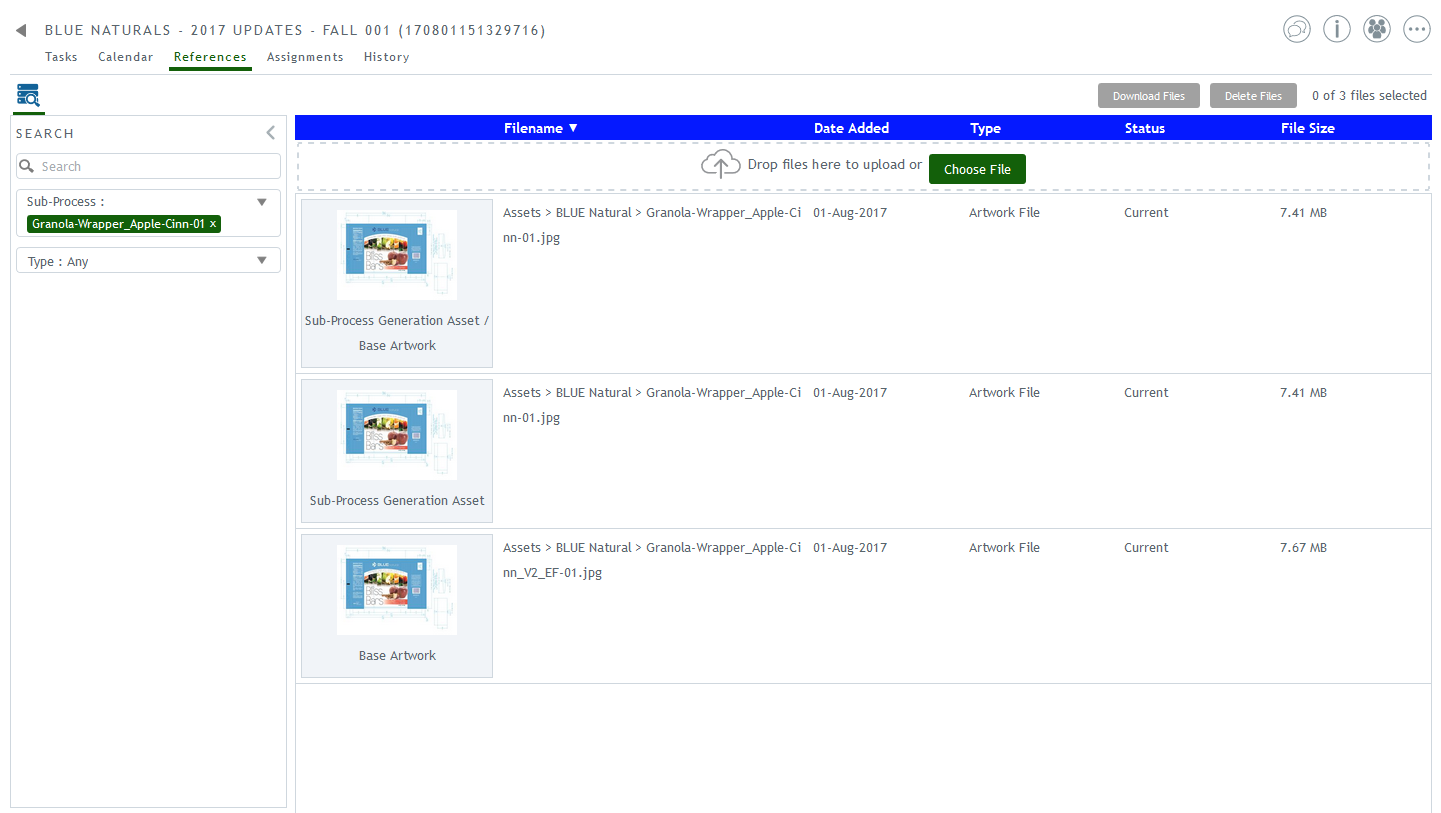
If the file that created the sub-process is changed in a Select Base Artwork from Library task, the thumbnail image for the file from that task will be labeled “Base Artwork.” The Base Artwork file is also available in the proceeding tasks and in the project’s References tab. The original file that created the sub-process will only be available in the sub-process details panel and in the project’s References tab. See Tasks to learn more about the Select Base Artwork from Library task.
To see which files were used to create the sub-processes and which files are used as base artwork files, open the project’s References tab view.
Duplicating Sub-Processes
As a project owner, you will be able to duplicate a sub-process that was created via the auto-generated sub-process selection of files and folders from the library.
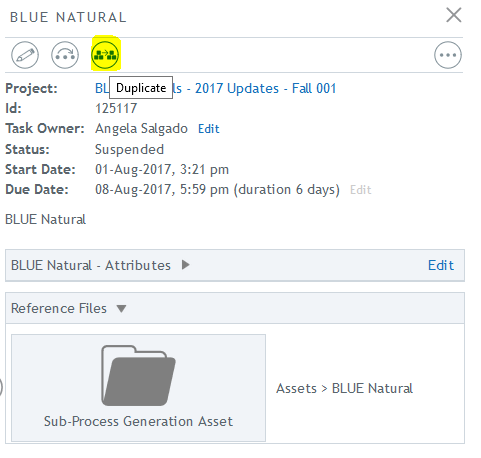
Once you duplicate one of these sub-processes, you can change its name (if auto-naming is not configured) or add metadata attributes. The original file or folder selection will be removed on the duplicated sub-process.
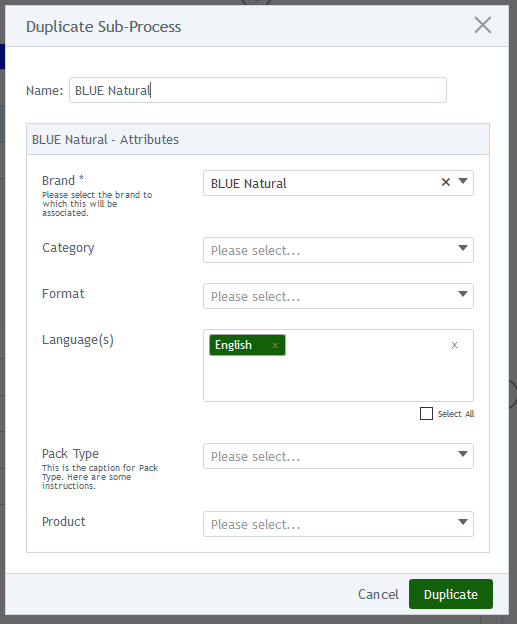
Creating a new sub-process from a library asset
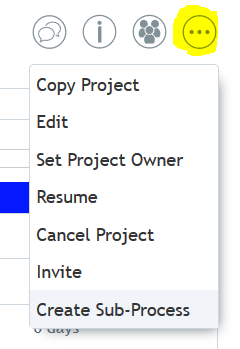
If you need additional sub-processes in your project that are based on assets in the library, you can add them while the project is draft or suspended. To create another sub-process, click on the project’s action menu and select “Create Sub-Process”.
Note: Some templates may not allow creating more sub-processes after a project has started (this option is on the Process Template’s Auto Sub-Process tab).
The “Attach from Asset Library” window will appear, select one or more files or folders to add to the right panel. These selections will be the sub-process generation asset to create each sub-process. To select a library item, click in the top left area of the thumbnail image. To remove a selection, click in that same area. Once you have completed your selection, click “OK.” The new sub-processes will be added to your project.
Auto Transfer to Library
If an auto transfer to library task was configured in the sub-process, and its transfer location in the template is the “base artwork location,” then the approved file will be transferred to the same location of the original sub-process generation asset. If versioning was configured, the approved file will become the next version of the original file.